
How to connect your DJI Camera to Moblin
This guide is for connecting your DJI camera to a device running Moblin. All of our Moblin guides assume that you have ‘Show All Settings’ enabled. This can be found at the bottom of the Settings menu. In this guide we use the DJI Pocket 3, but any DJI camera will be the same such as the Osmo Action 4, Osmo Action 5 and Osmo Action 6 and getting the RTMP working with Moblin.
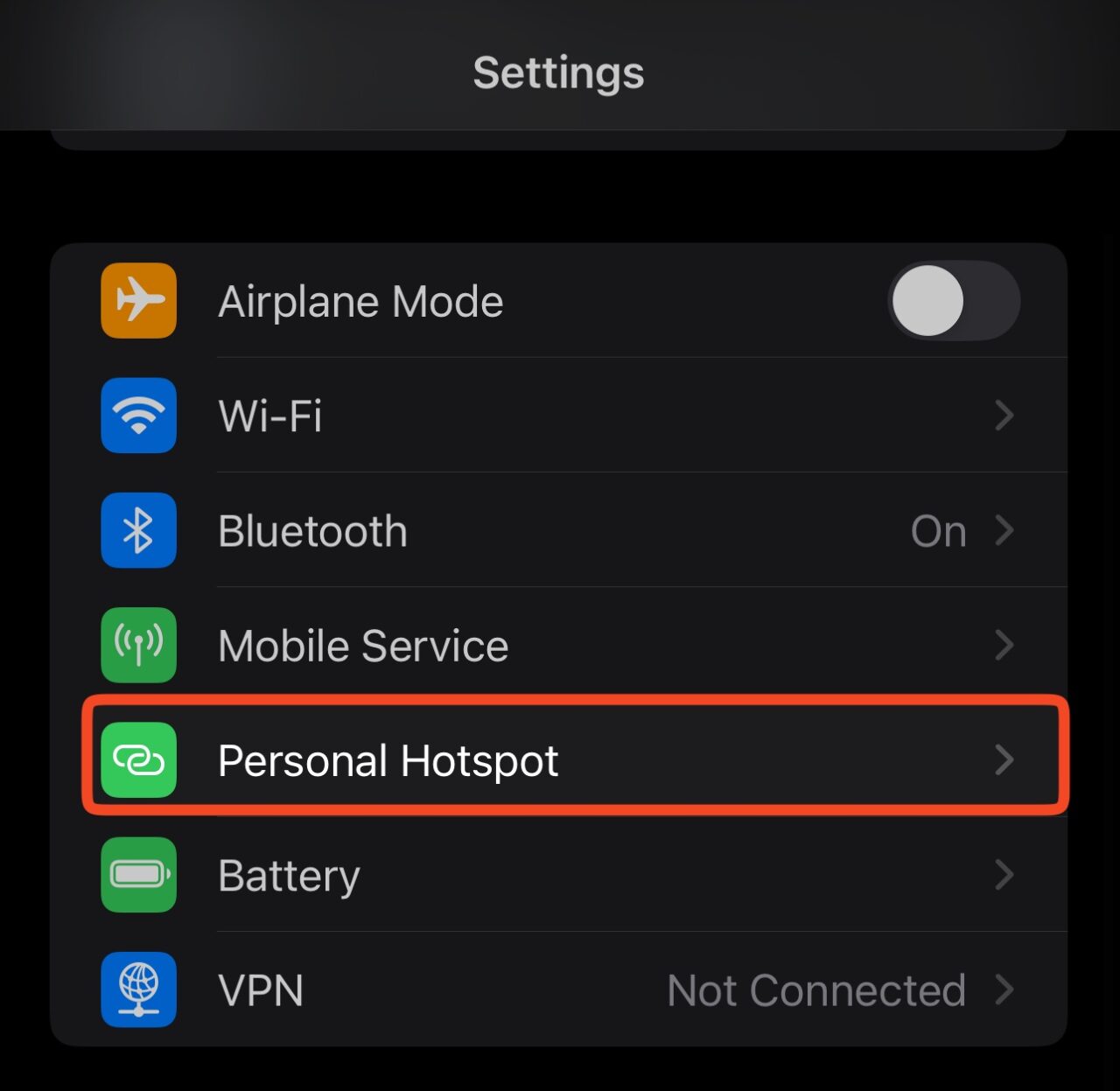
First, we need to create/enable the iPhones personal hotspot. To do this, go into Settings and then Personal Hotspot
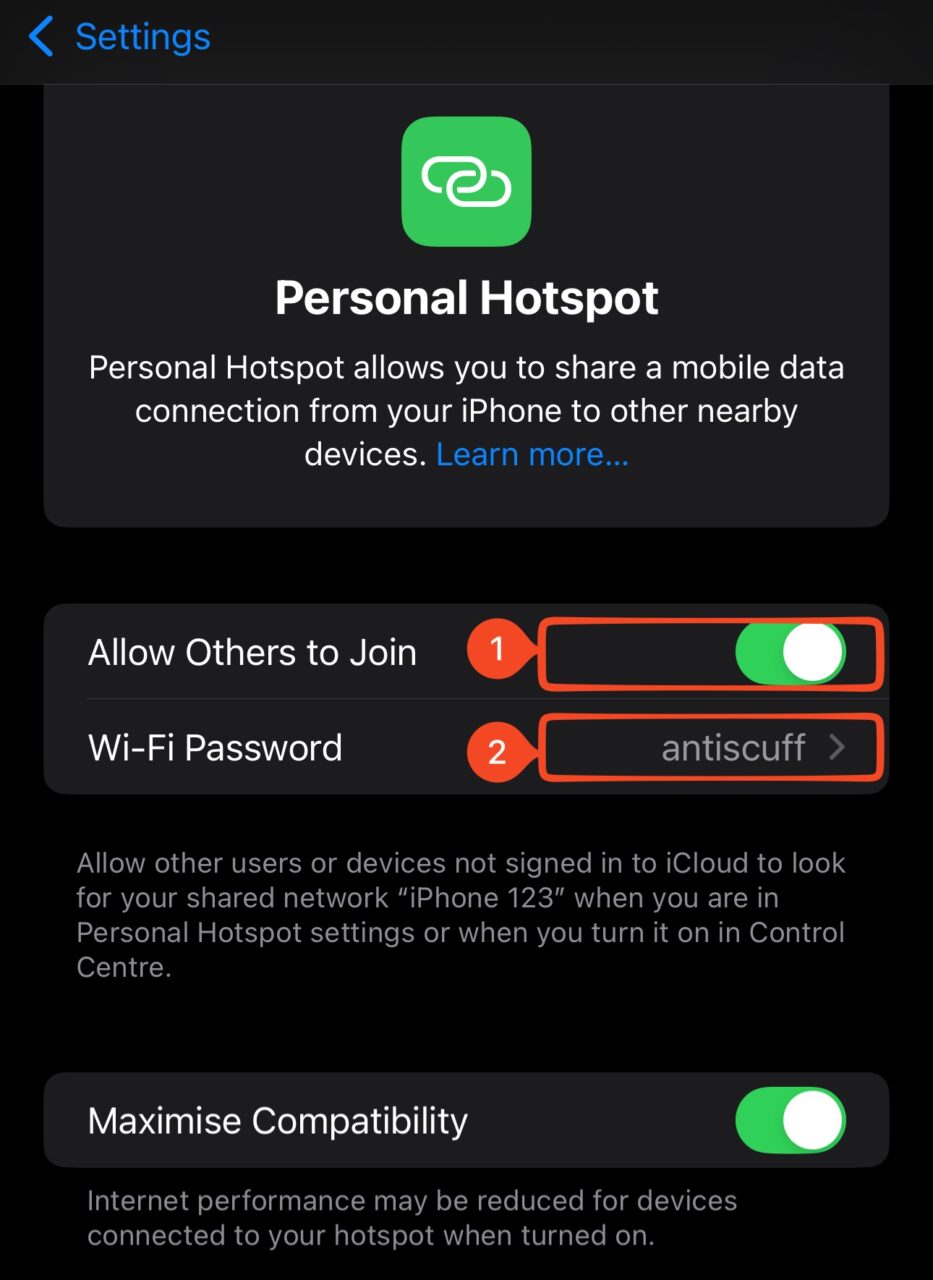
Select ‘Allow Others to Join‘ (1) and make a note of the Wi-Fi Password (2)
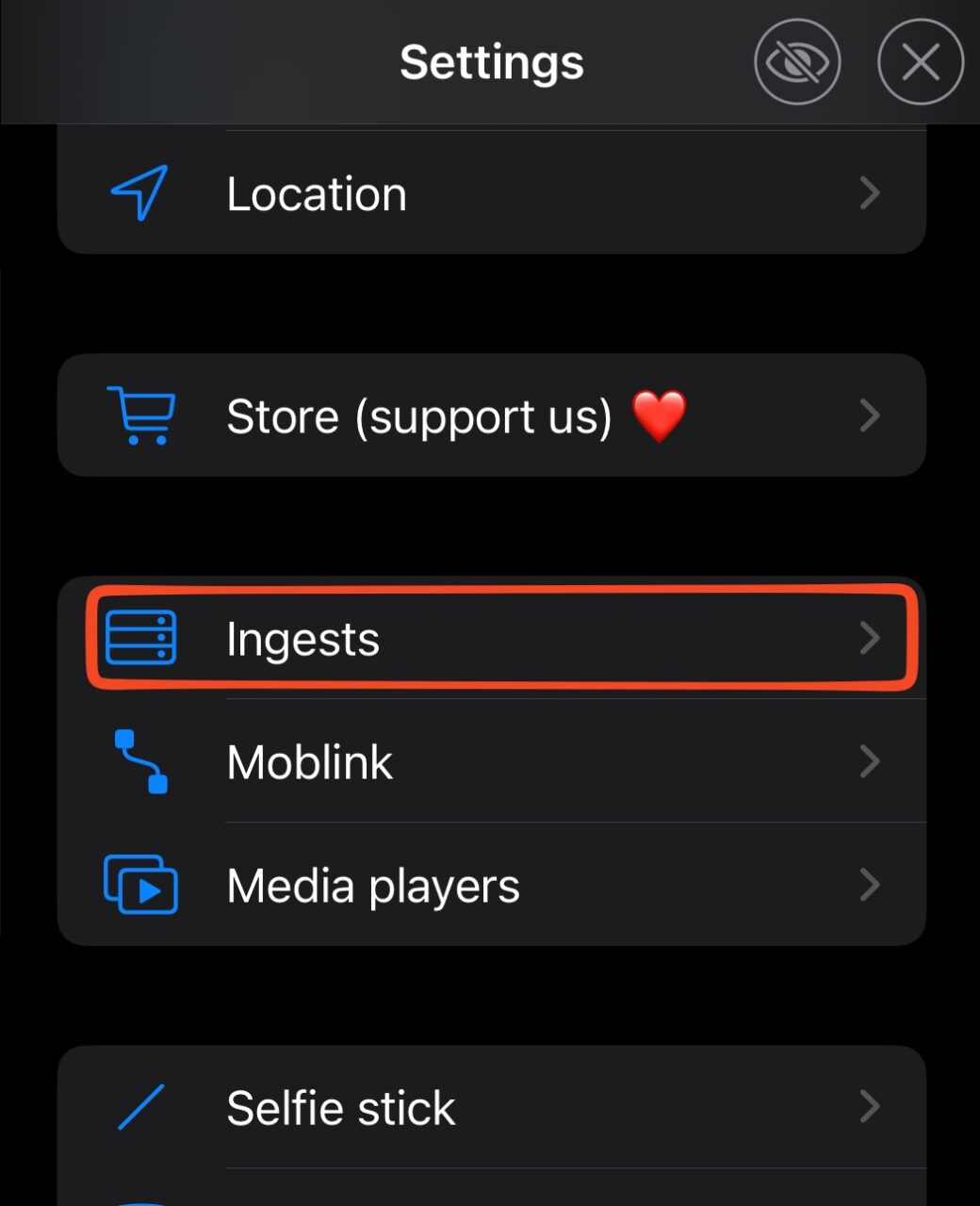
Next, open Moblin and go into Settings and look for Ingests
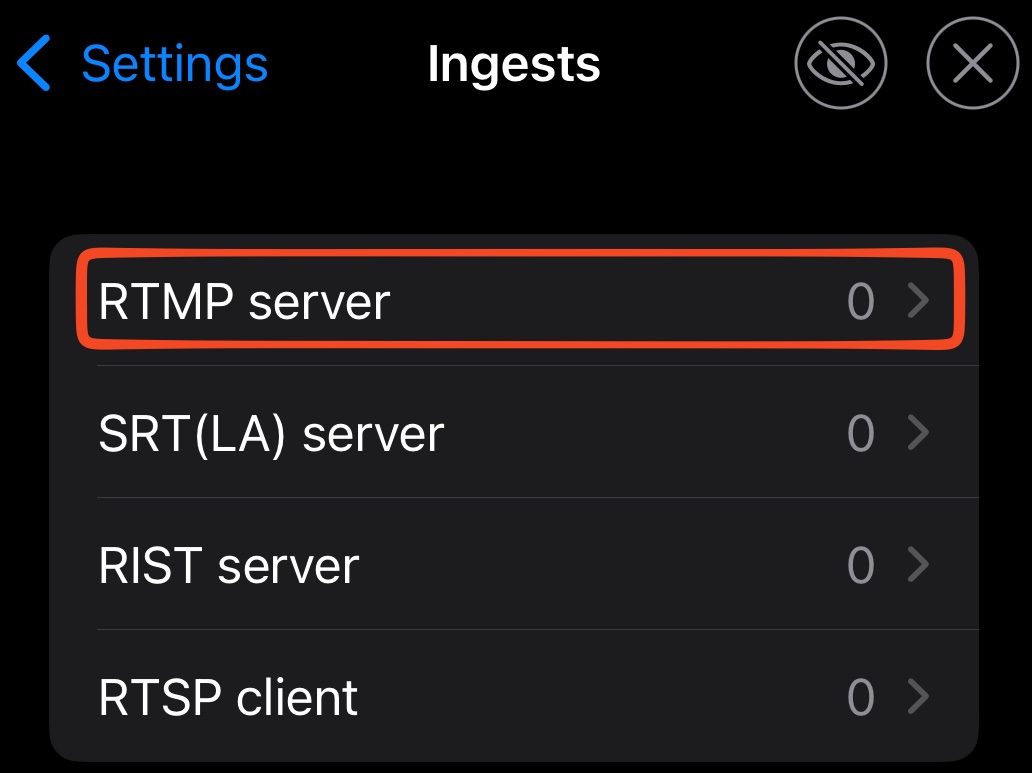
Select RTMP server
Go to Create
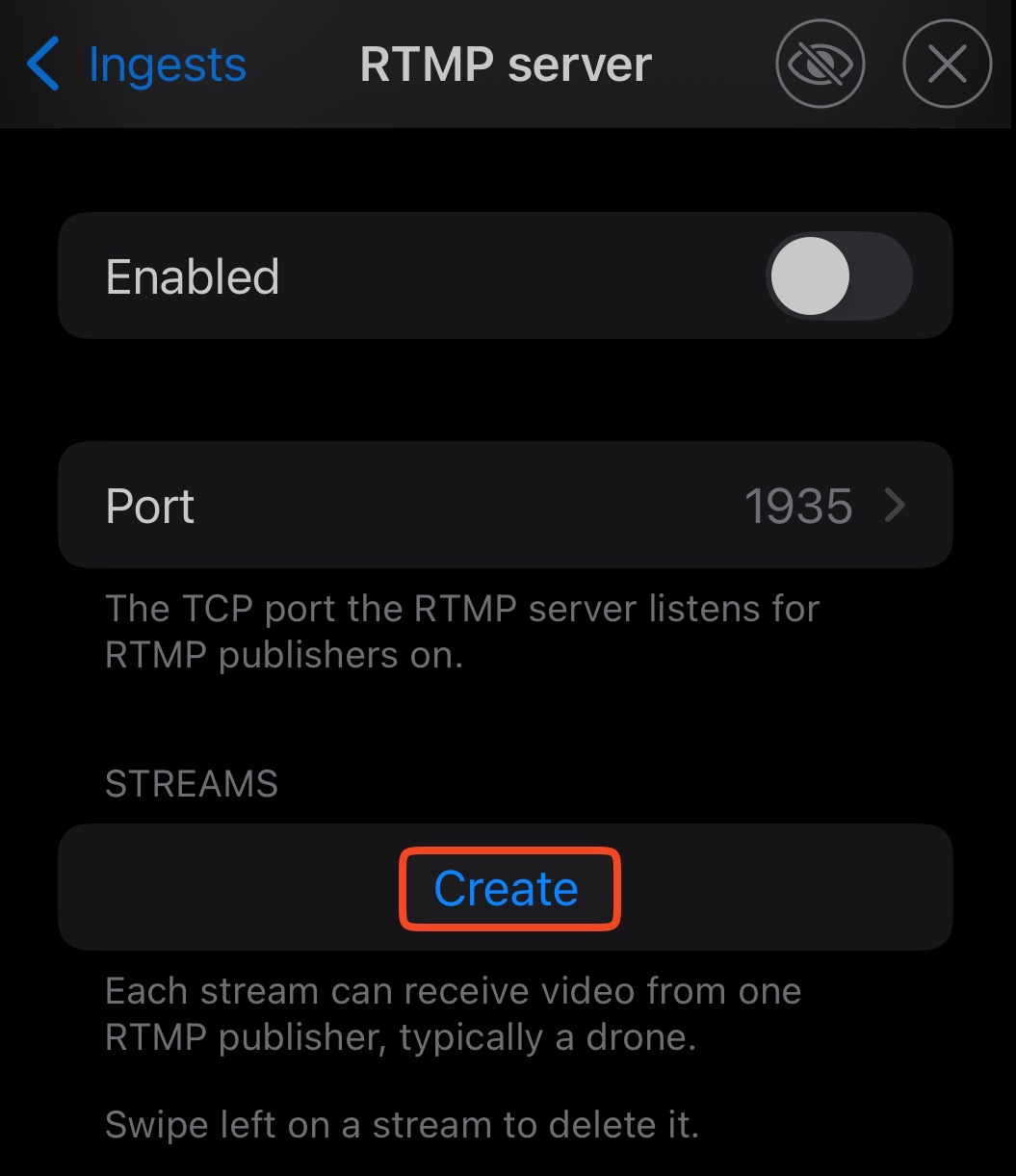
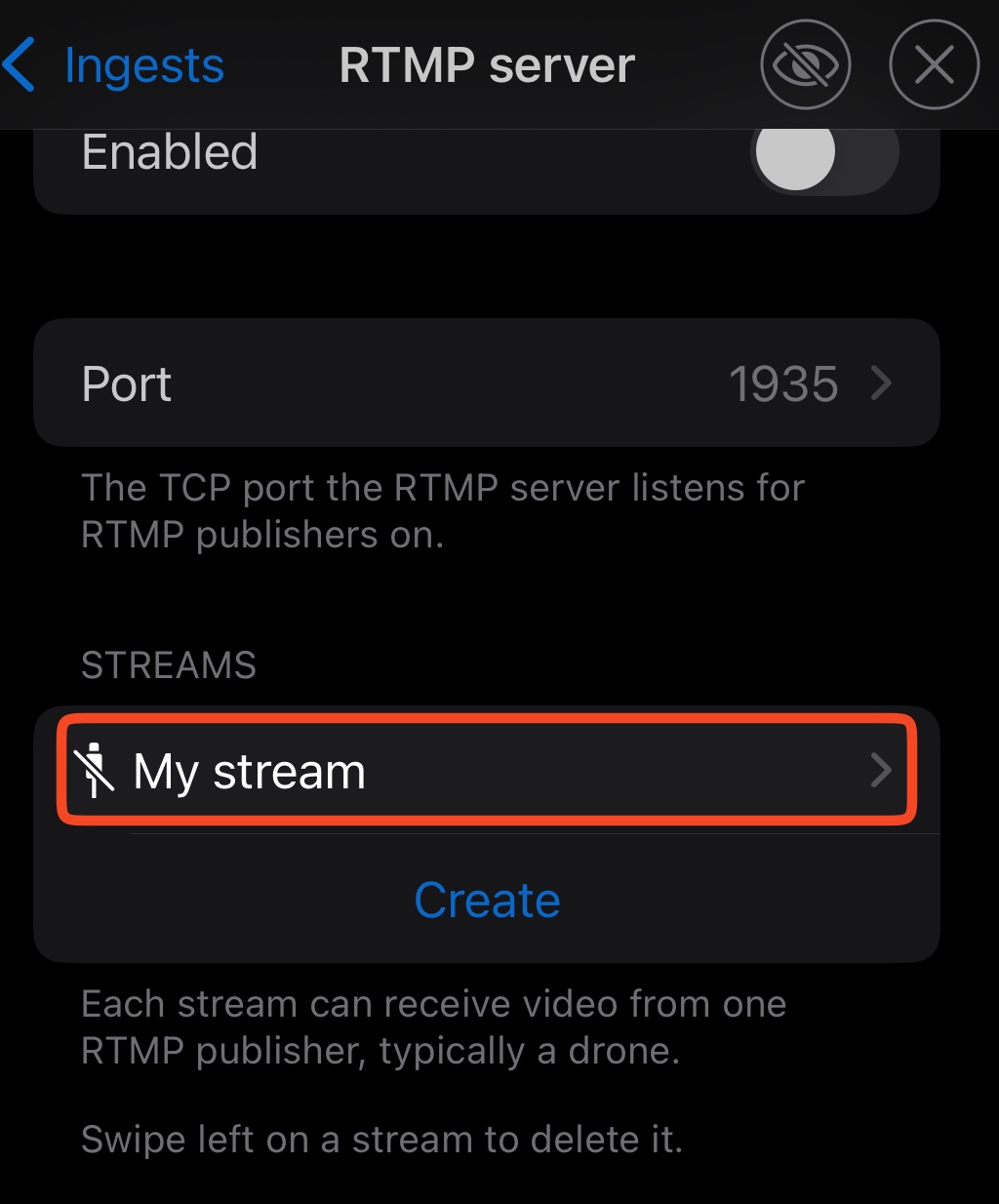
It will create a new ‘STREAMS‘ called My stream. Go into this
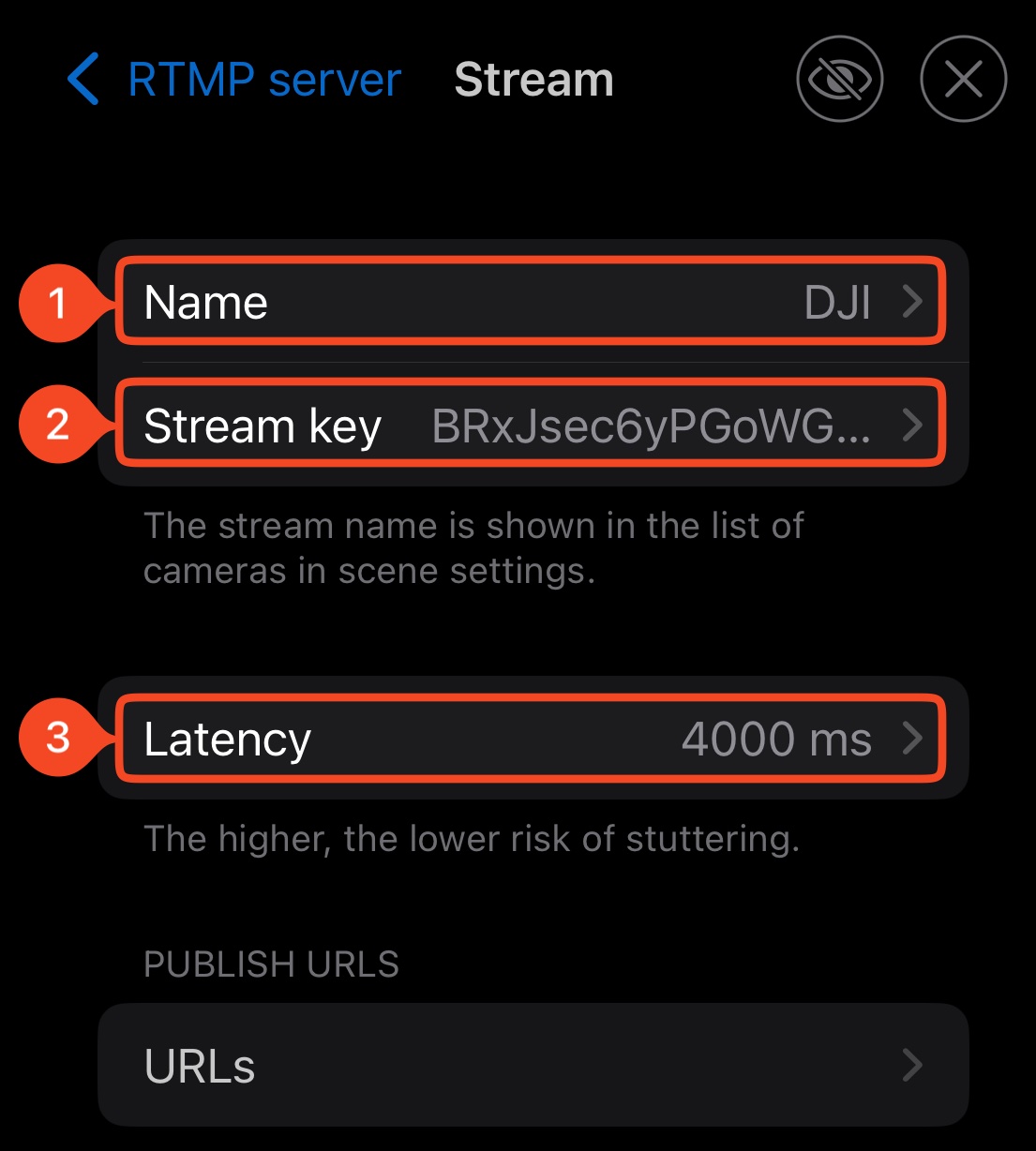
Change the Name (1) to something memorable. In this example we went with DJI
Stream key (2) can be left
Change Latency (3) to 4000 ms
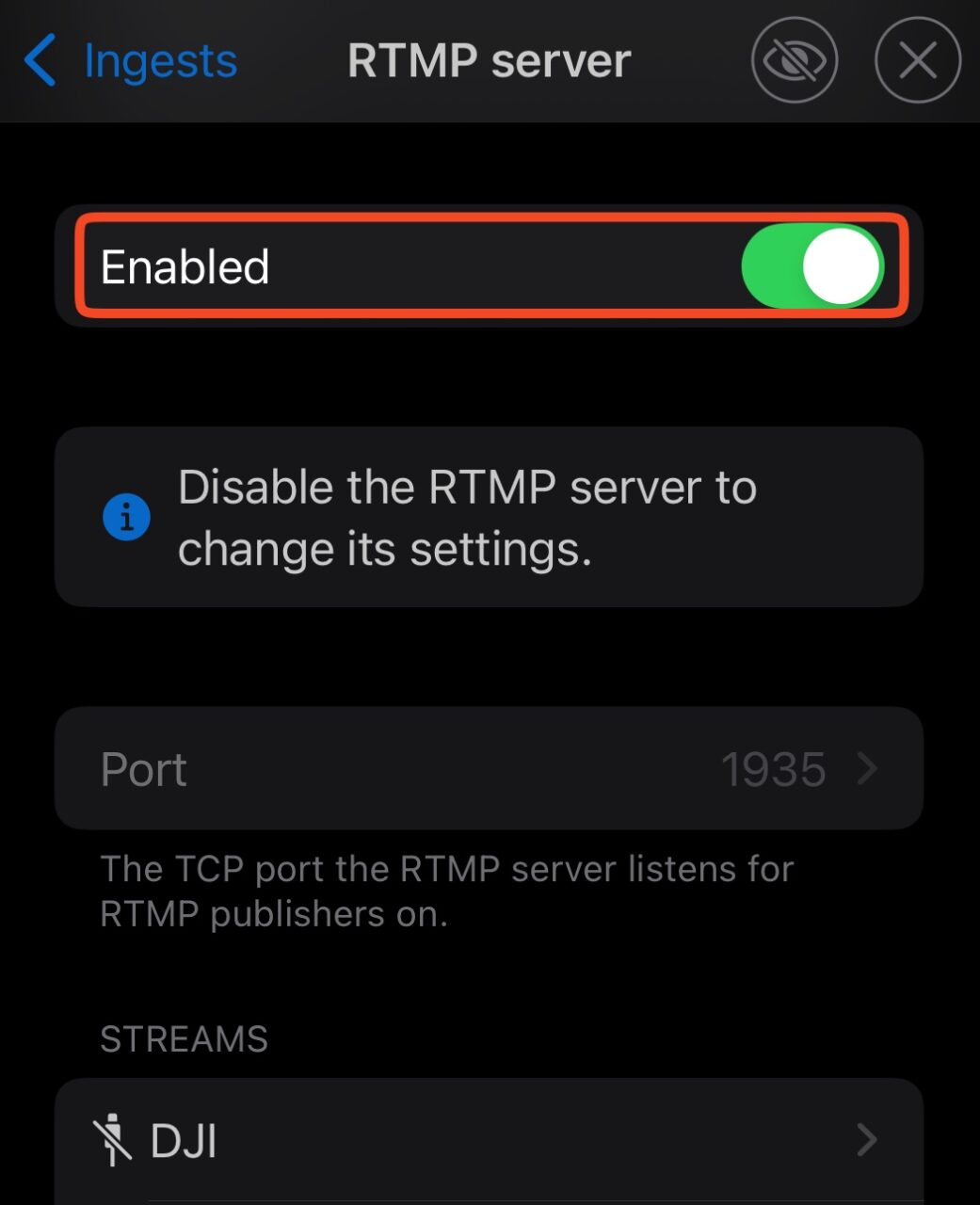
Go back to the RTMP server page, and select Enabled
Go back to Settings and go into Scenes
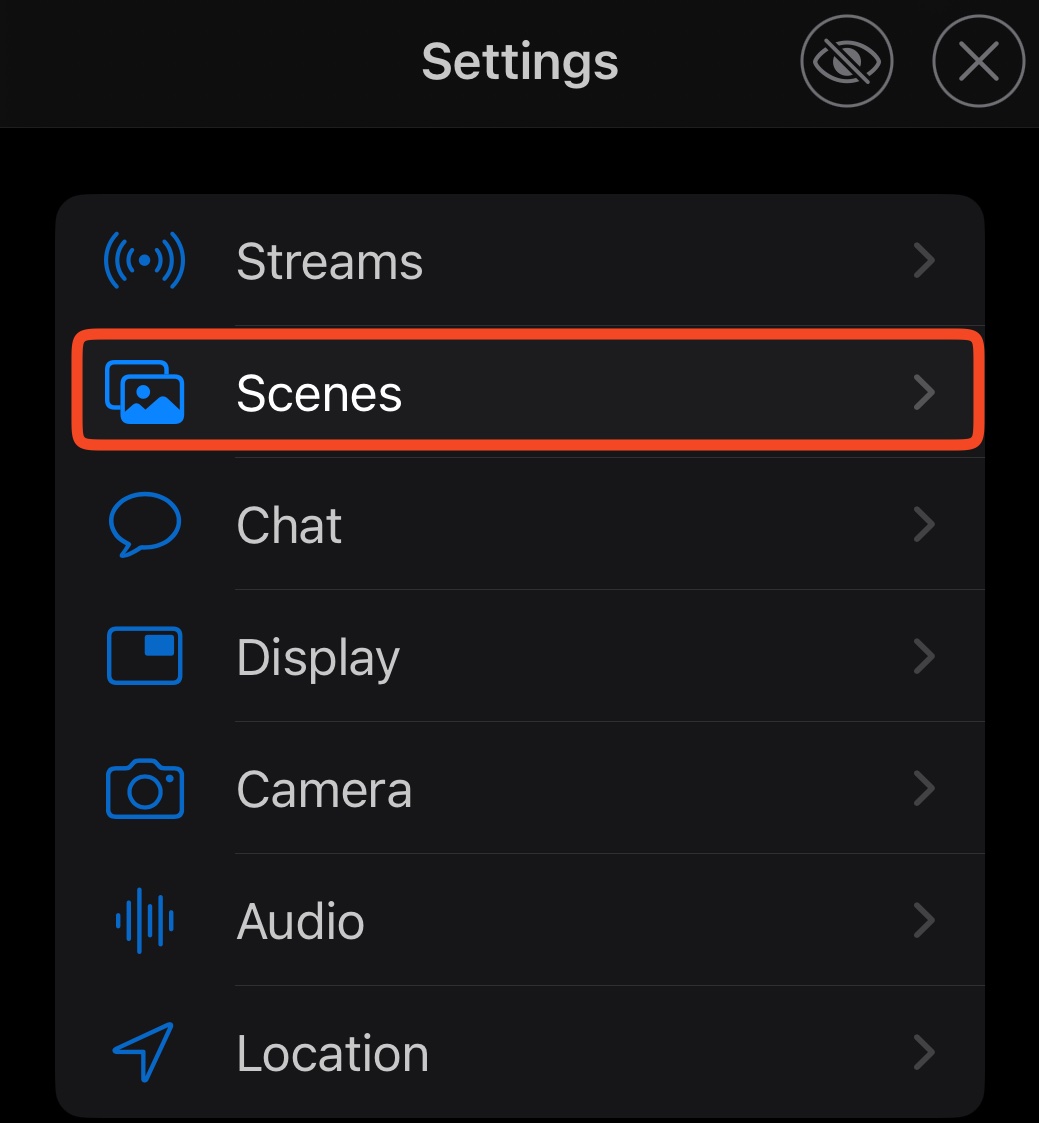
Then Create. This will create a new scene called My scene. Press this to go into the settings.
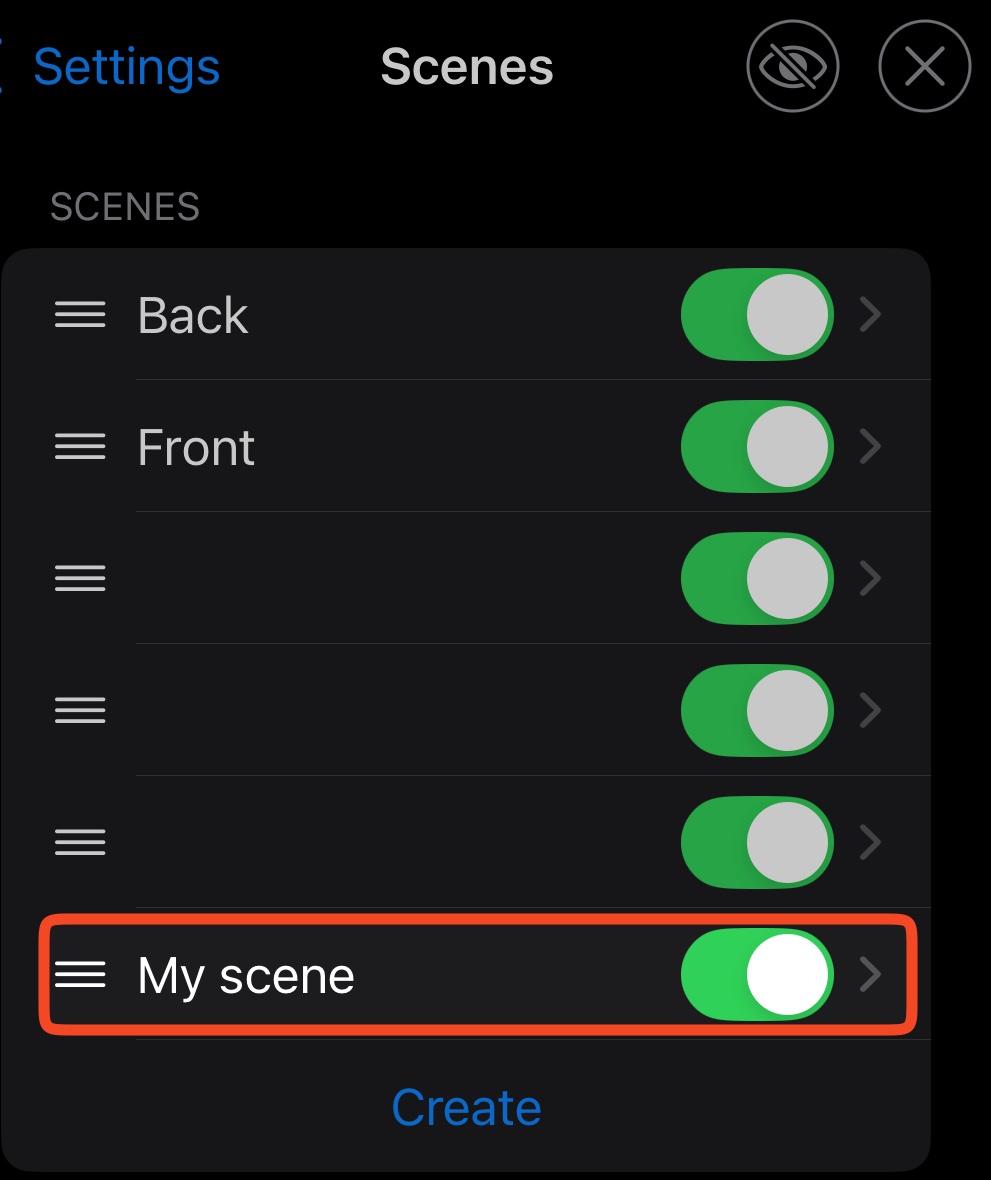
Set the Name to something memorable, we went with DJI
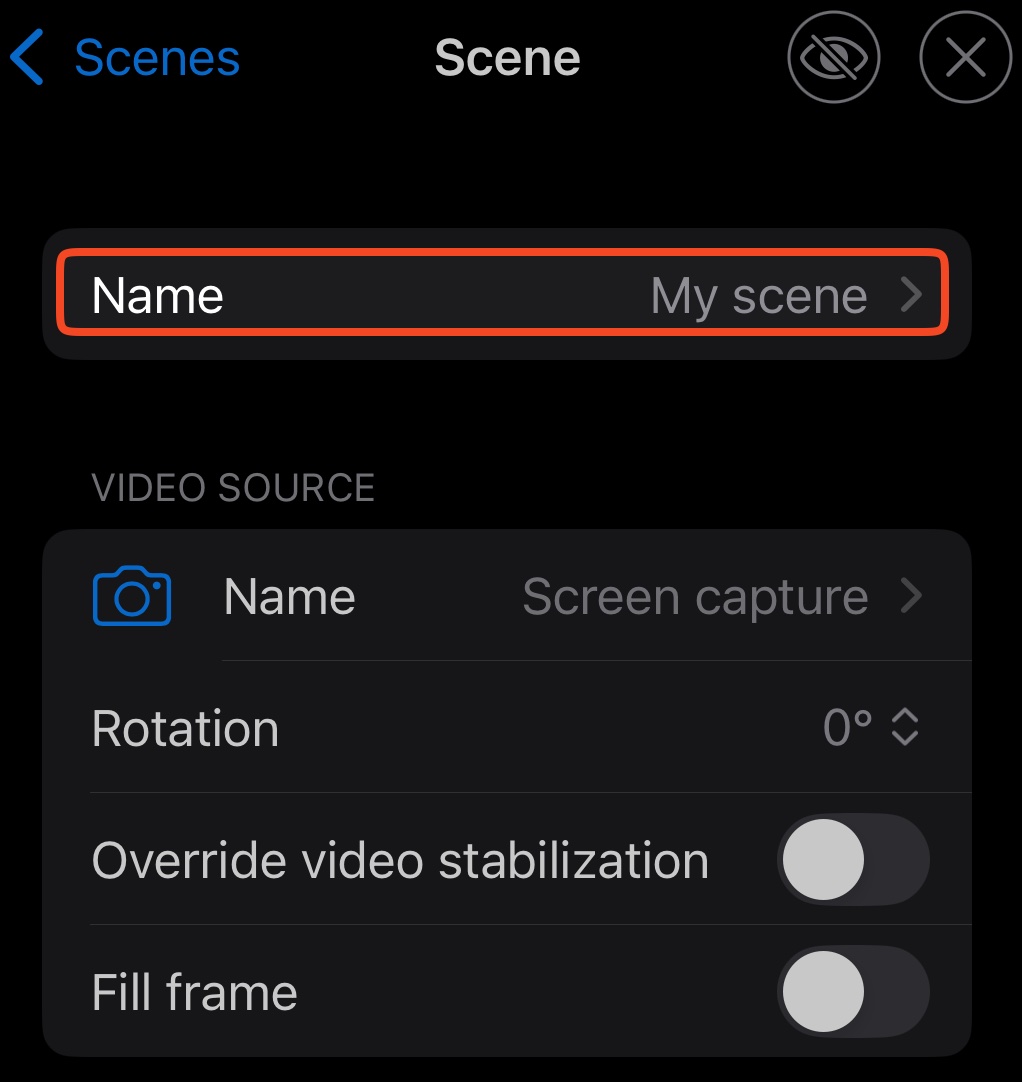
Under VIDEO SOURCE change the Name from Screen capture (1) to DJI (RTMP) (2), which we just created.
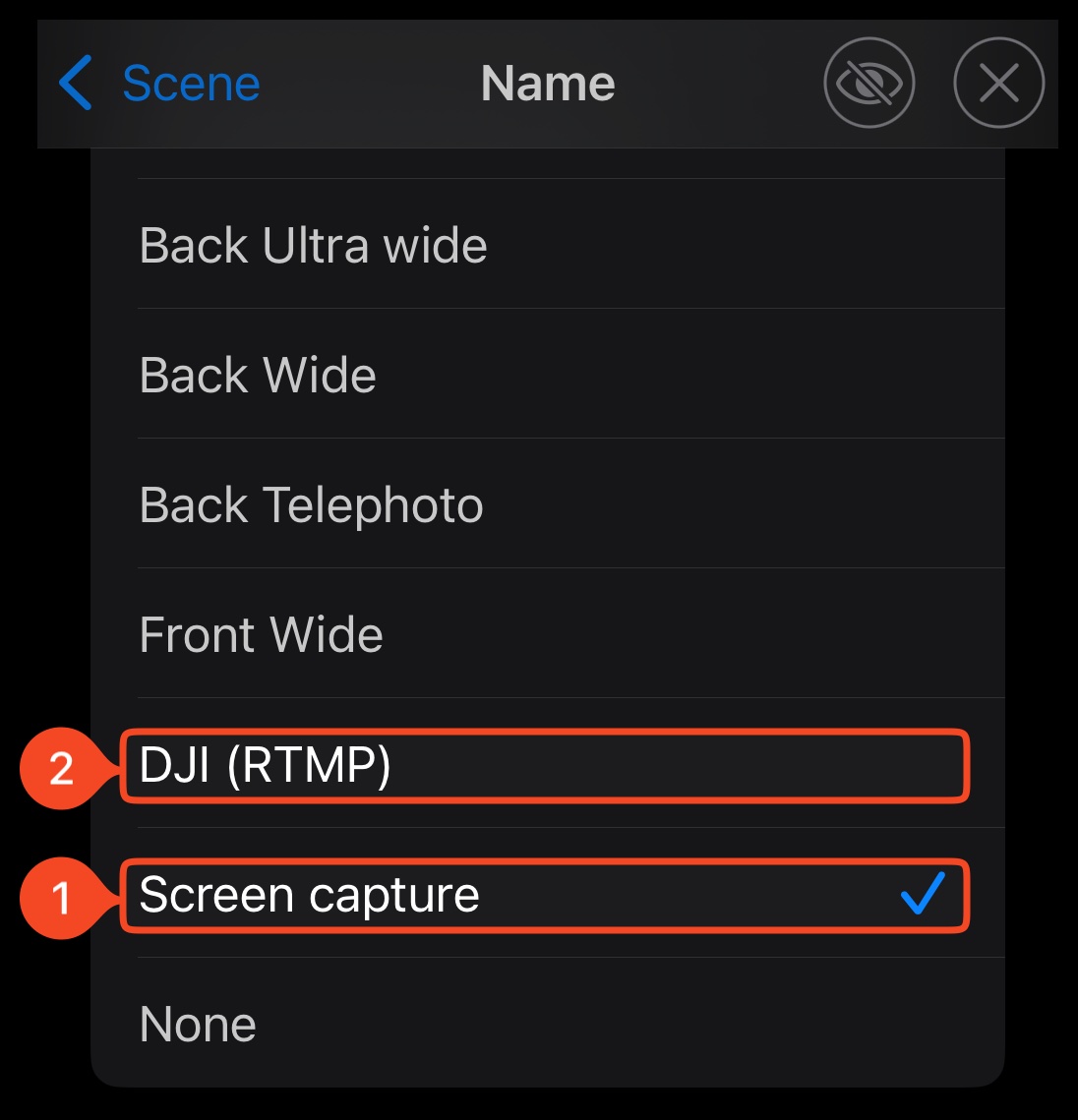
Then go back to the Settings menu, and scroll down to DJI devices
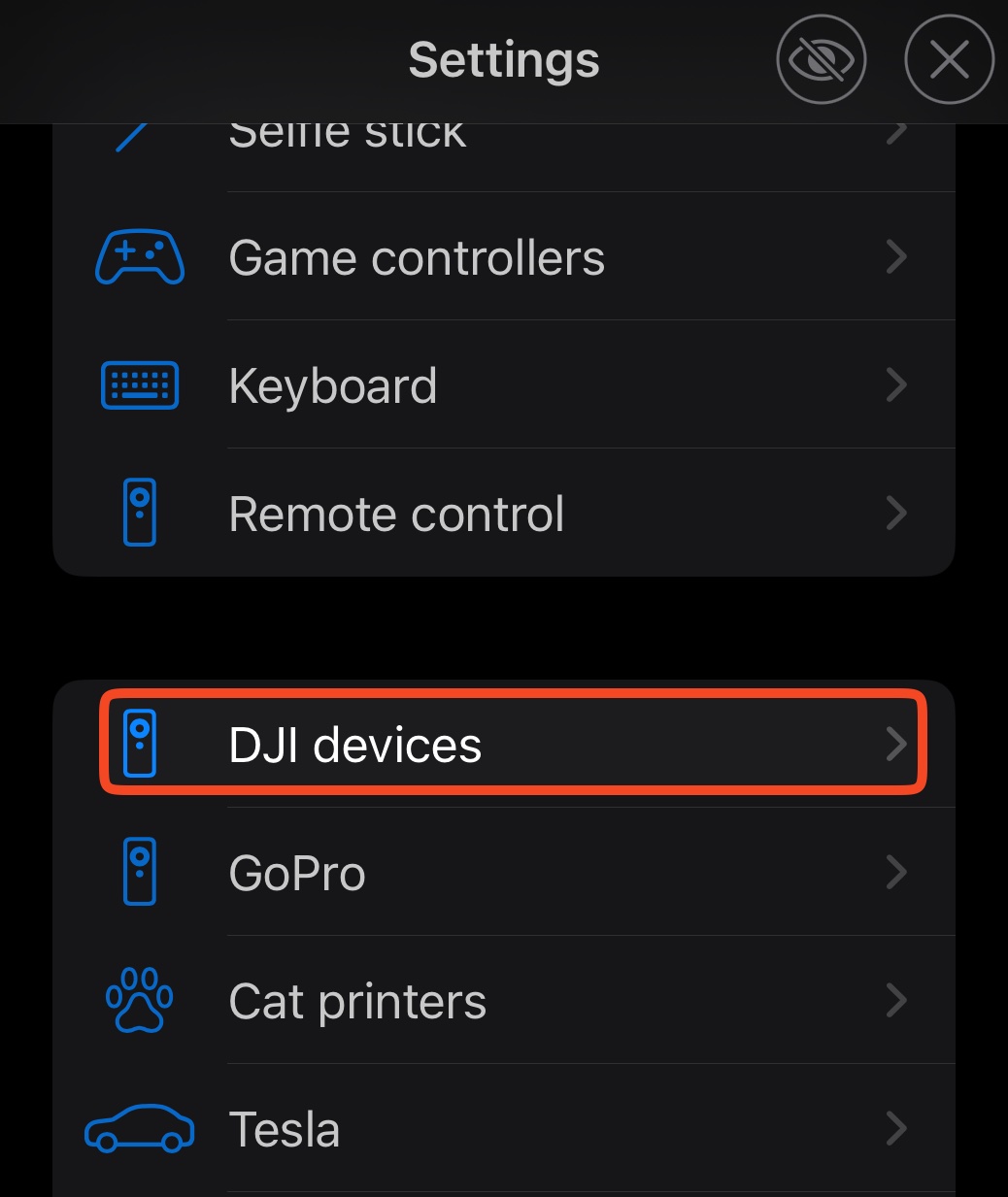
TURN YOUR DJI CAMERA ON AT THIS STAGE. Once it’s on, press Create.
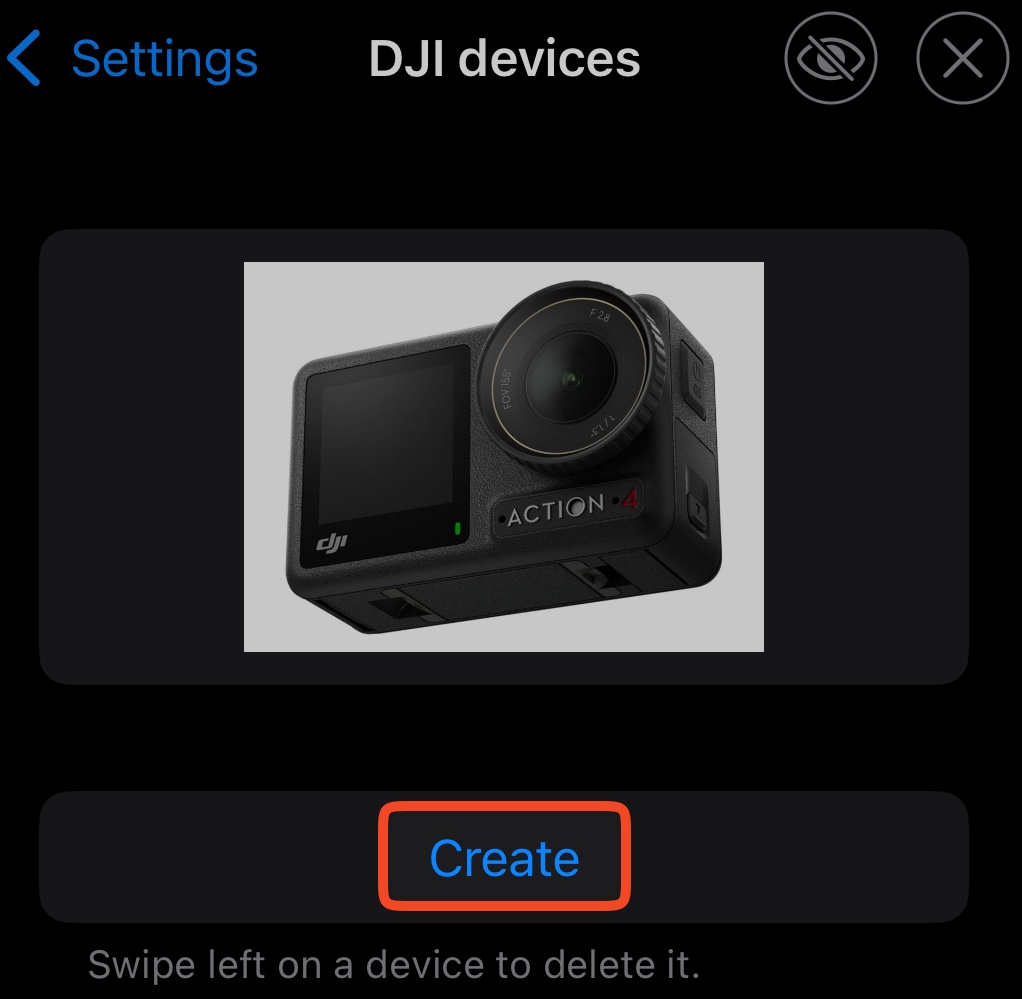
This will create a default called My device. Press it
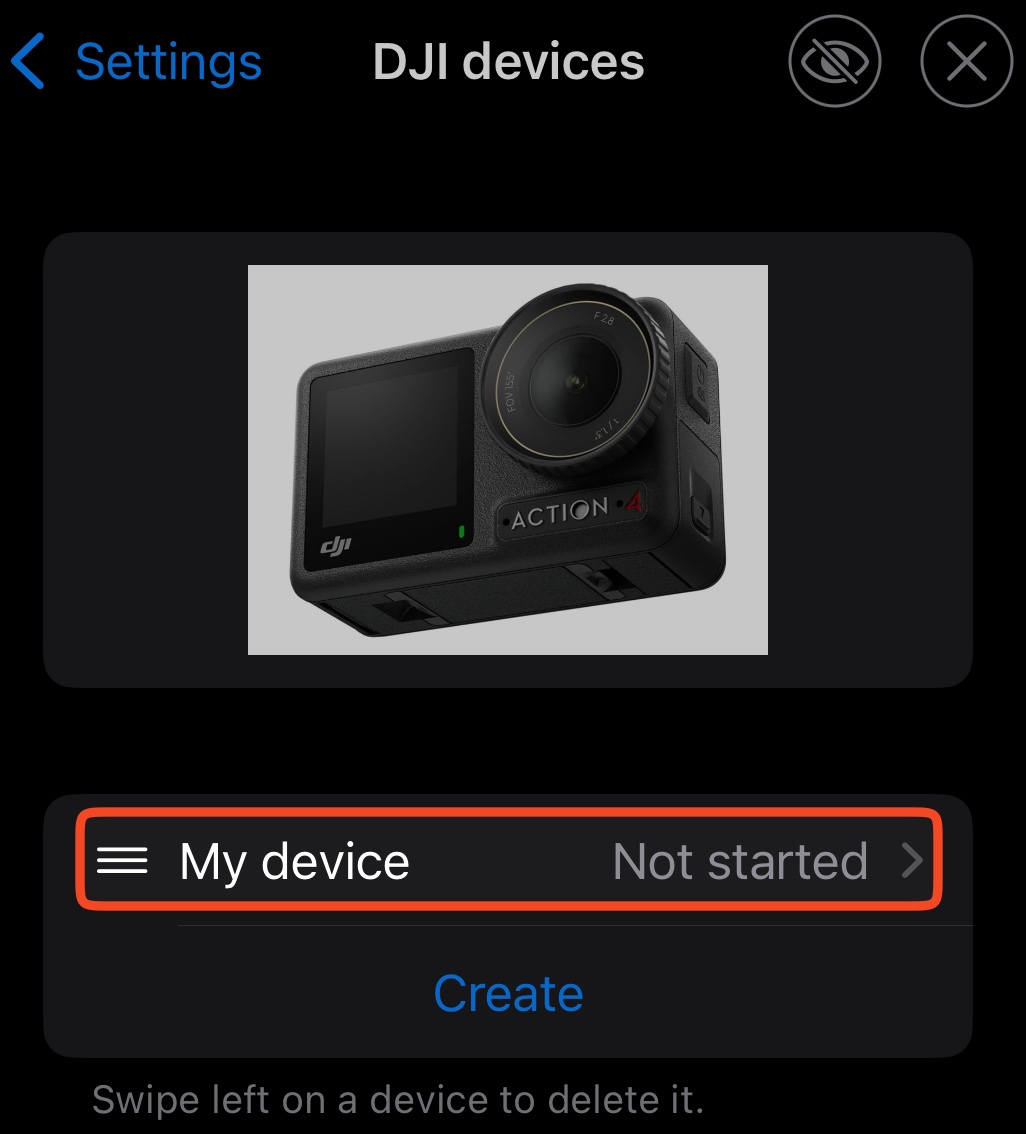
Change the name to the Name (1) to something memorable, then press Select device (2)
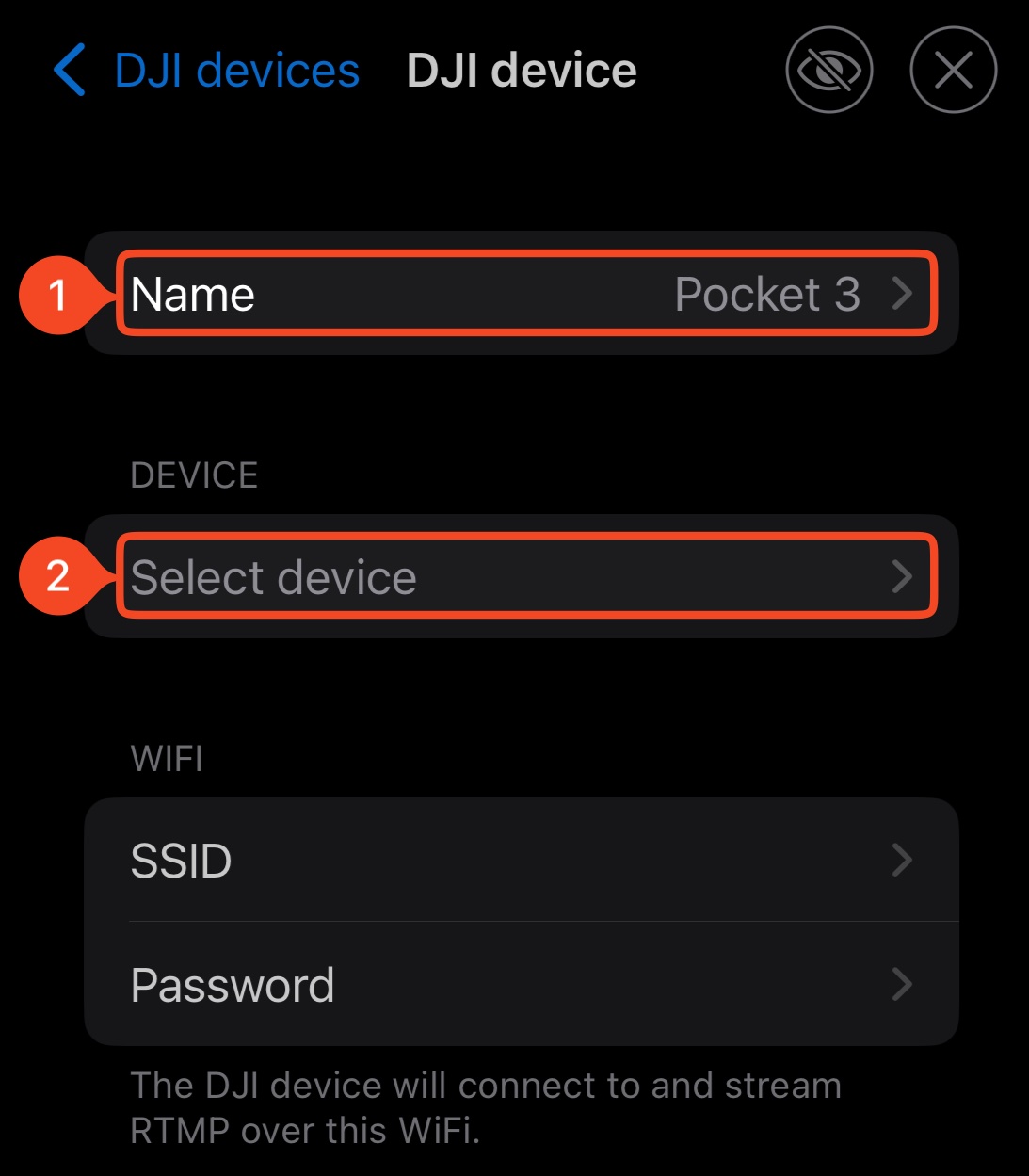
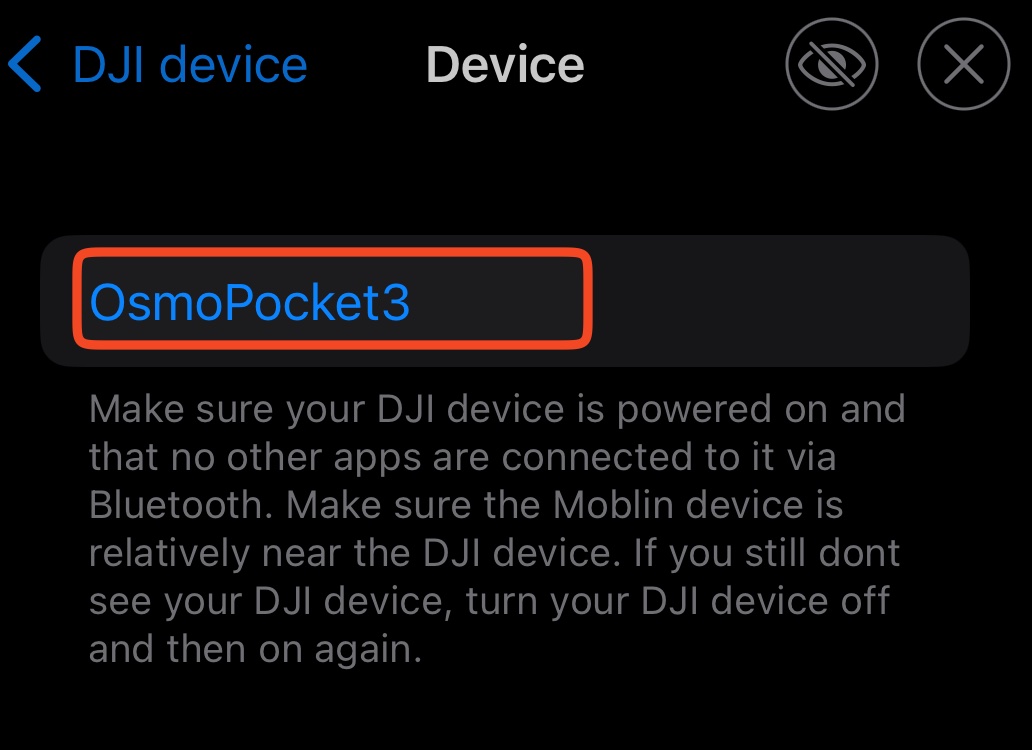
Under DEVICE press Select device. Your camera should be listed here. If not, make sure it’s turned on
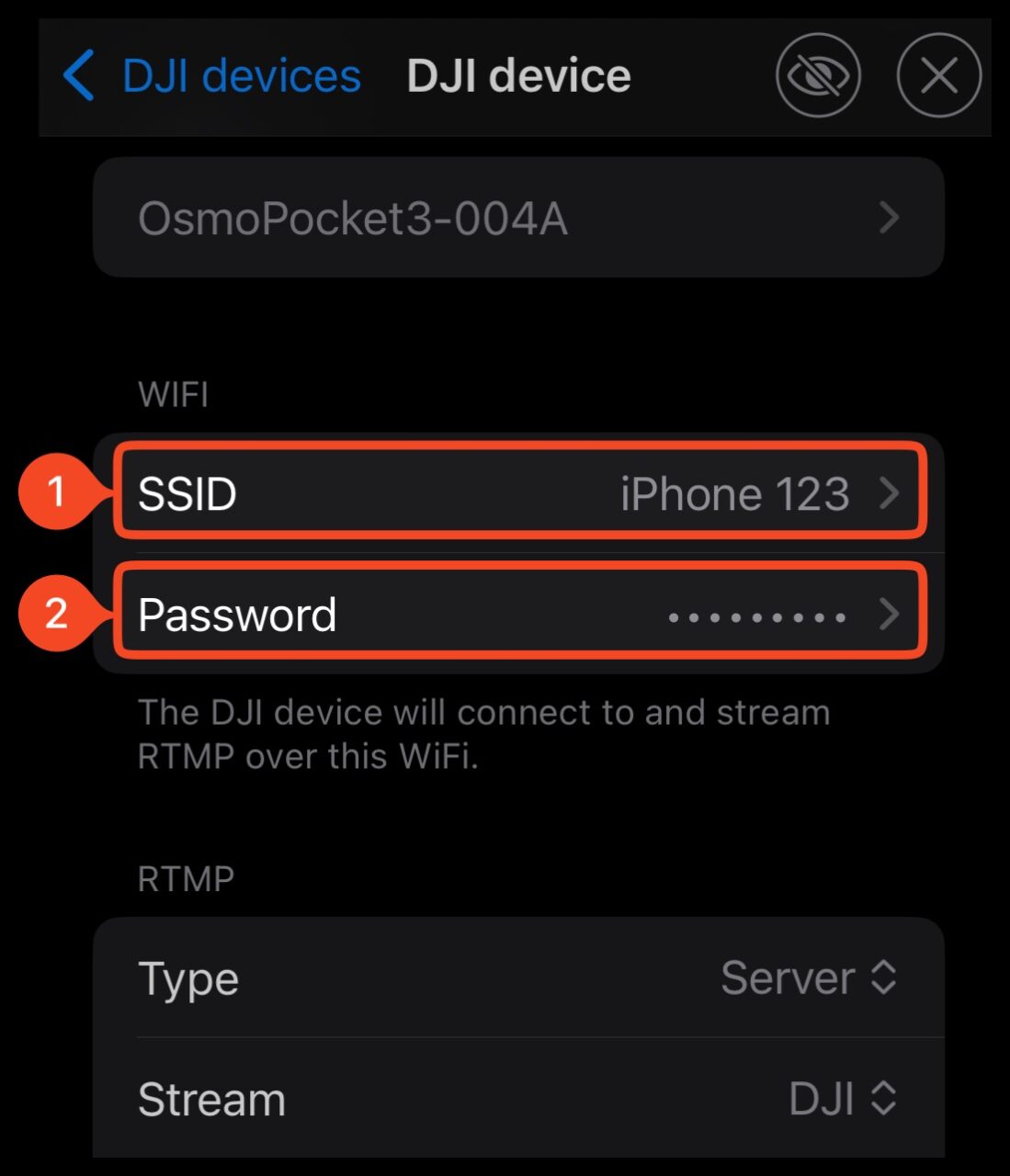
Under WIFI, set the SSID (1) and Password (2). The SSID will be your device name, and password from step 1 where we enabled the Wi-Fi Hotspot. IMPORTANT NOTE: It must be exact, including the correct case
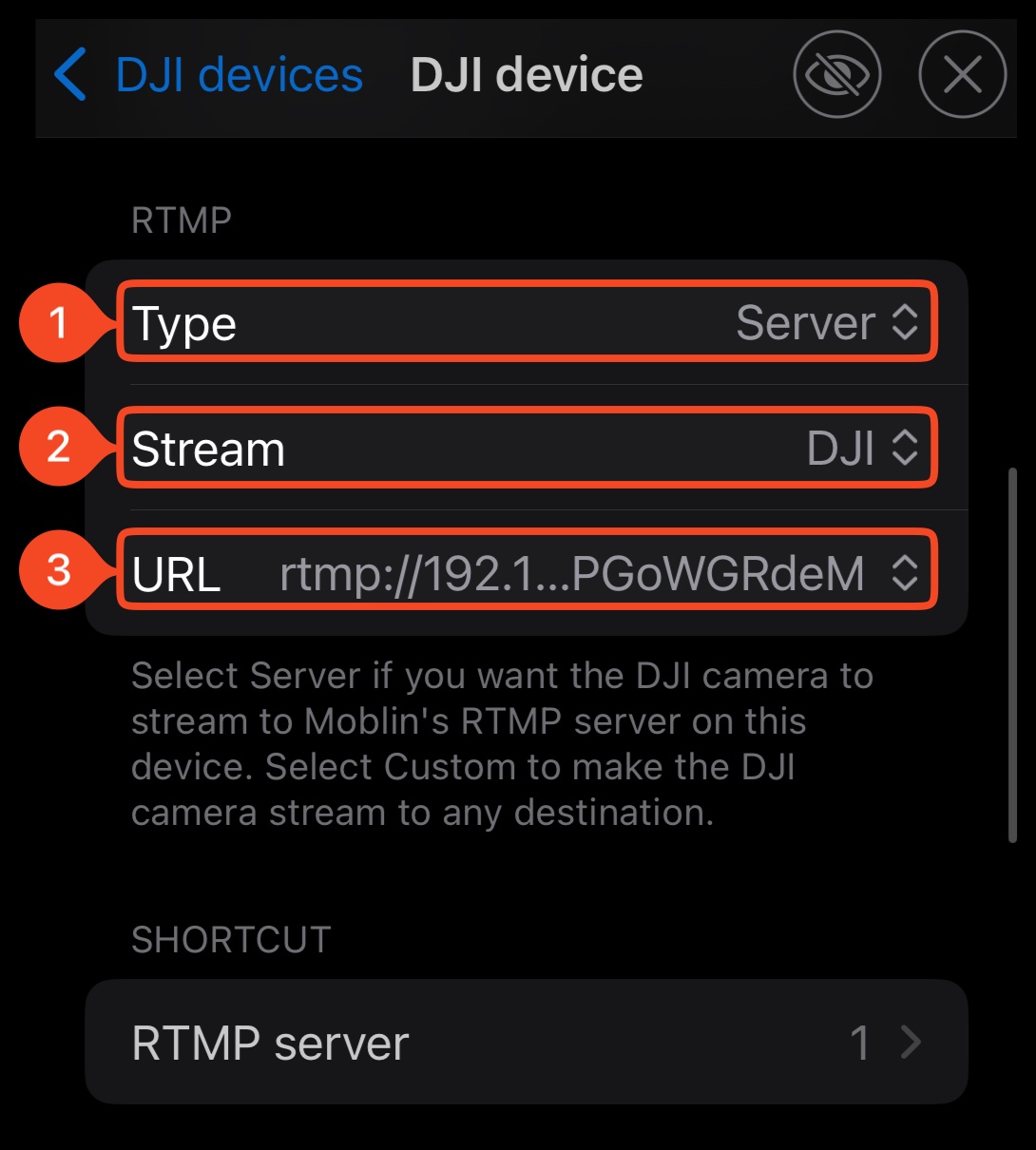
Under RTMP make sure the Type (1) is Server and the Stream (2) is the DJI one we made earlier. Usually the default URL (3) is correct, but if for some reason it doesn’t connect, change this to another option.
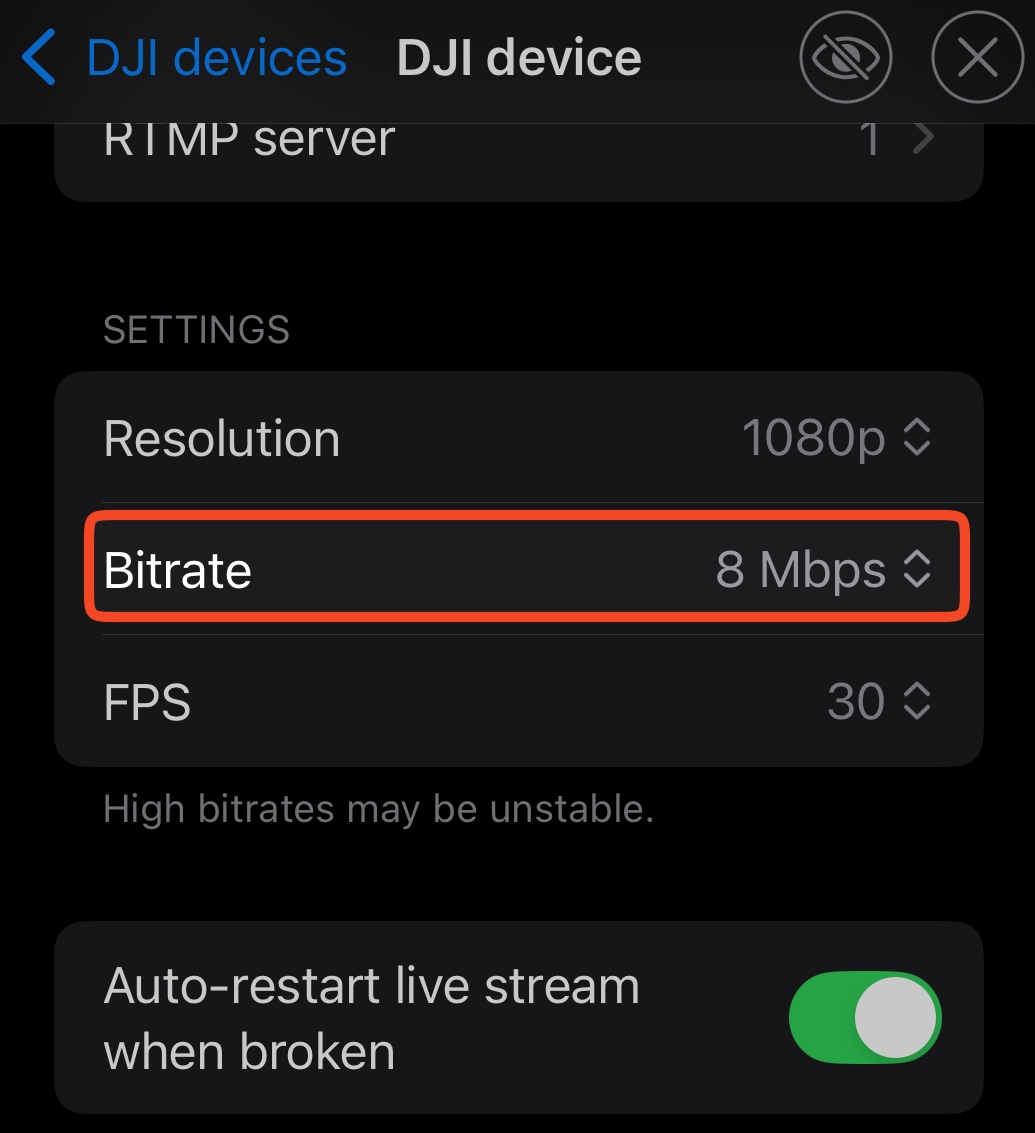
If needed, you can increase the bitrate.
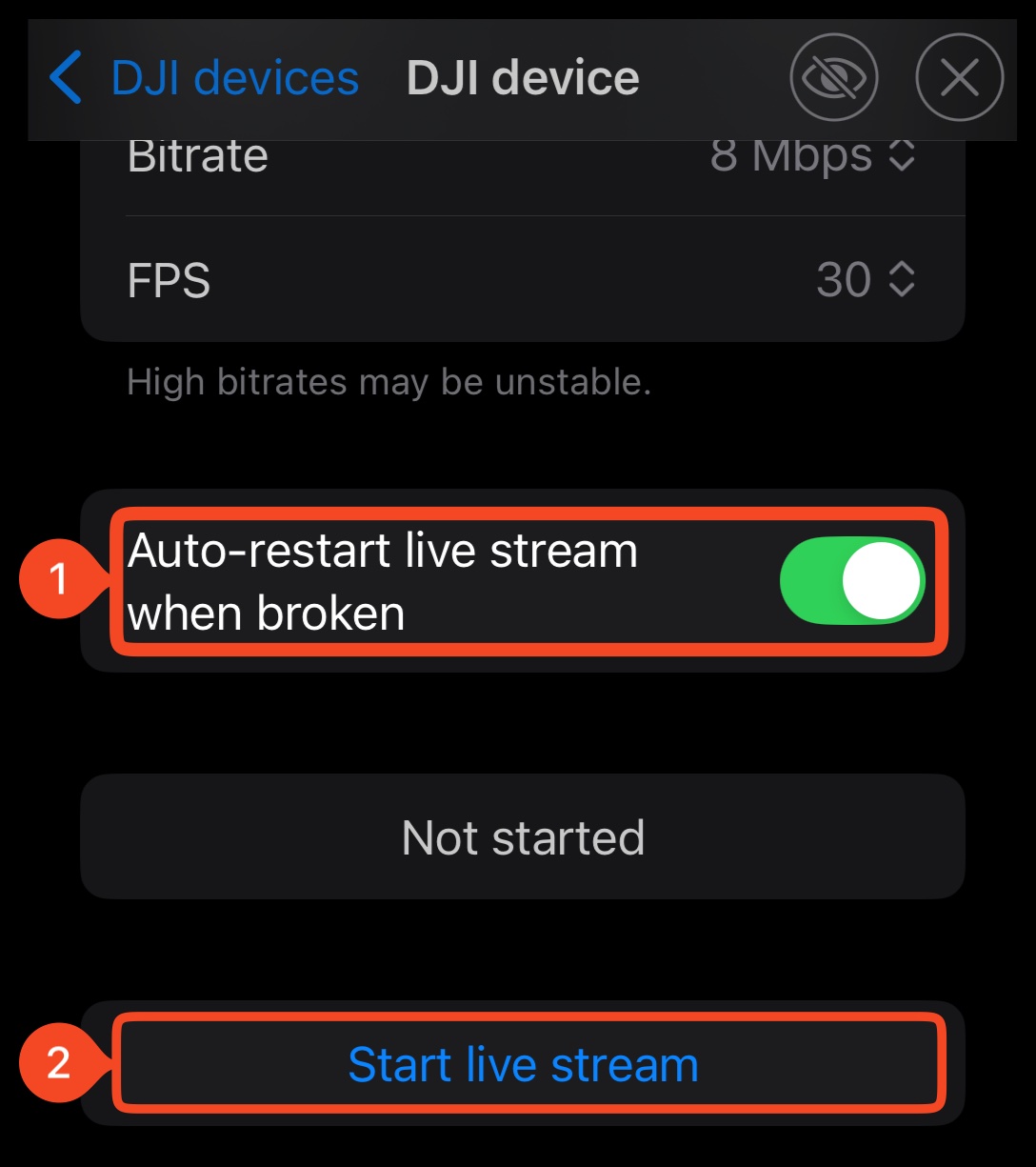
Then select Auto-restart live stream when broken (1) and finally ‘Start live stream‘ (2)
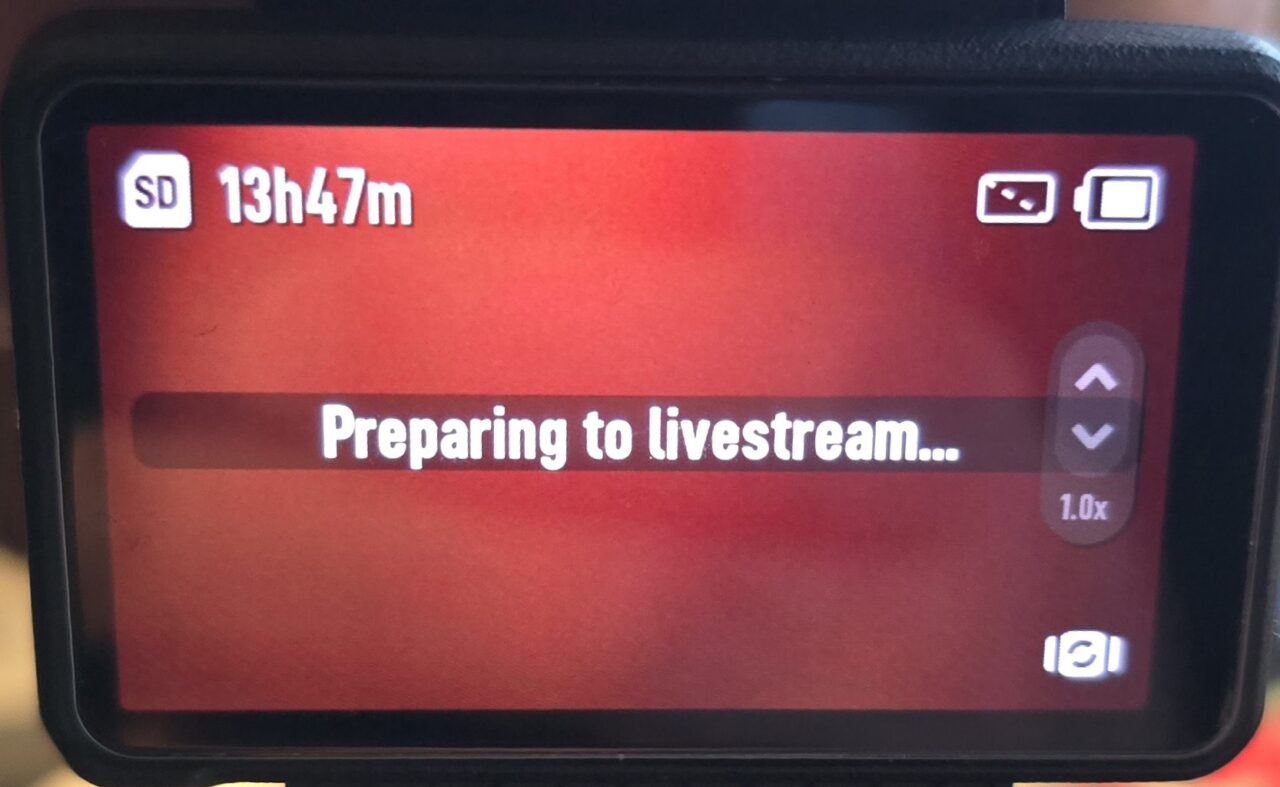
The Camera should also show Preparing to livestream…
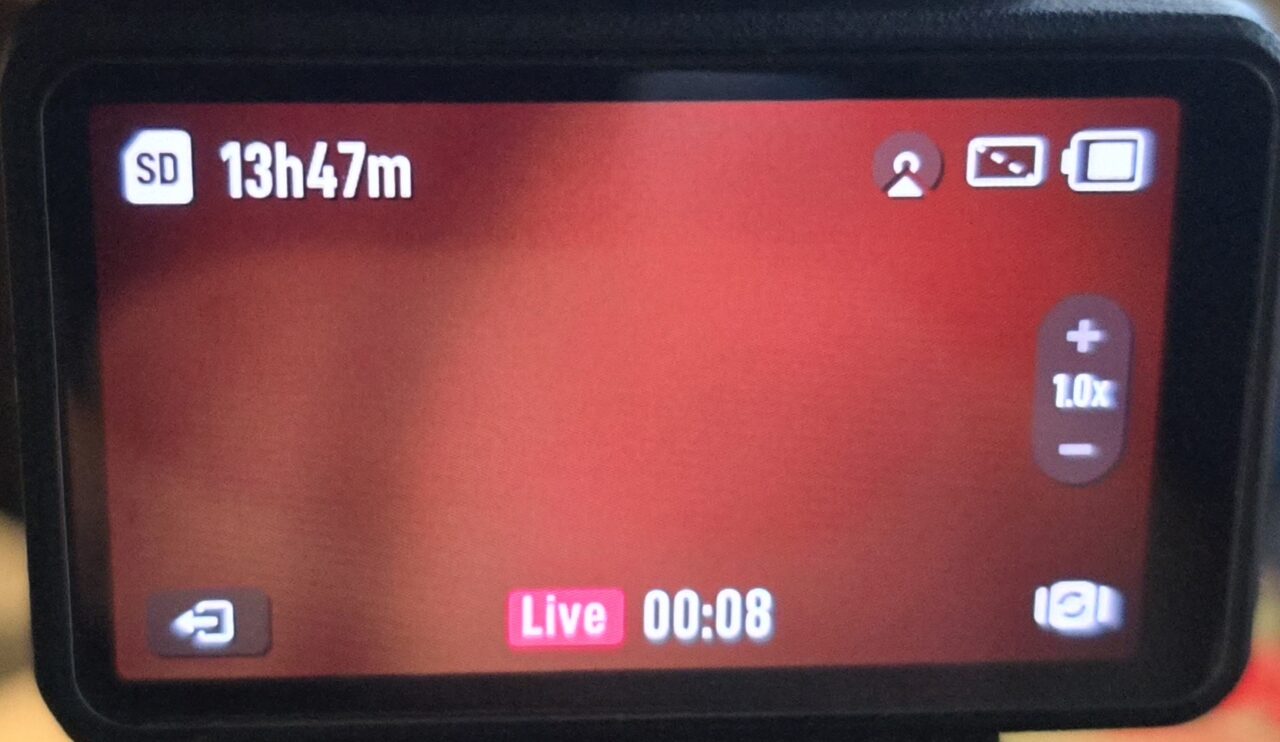
Then once connected it will show Live
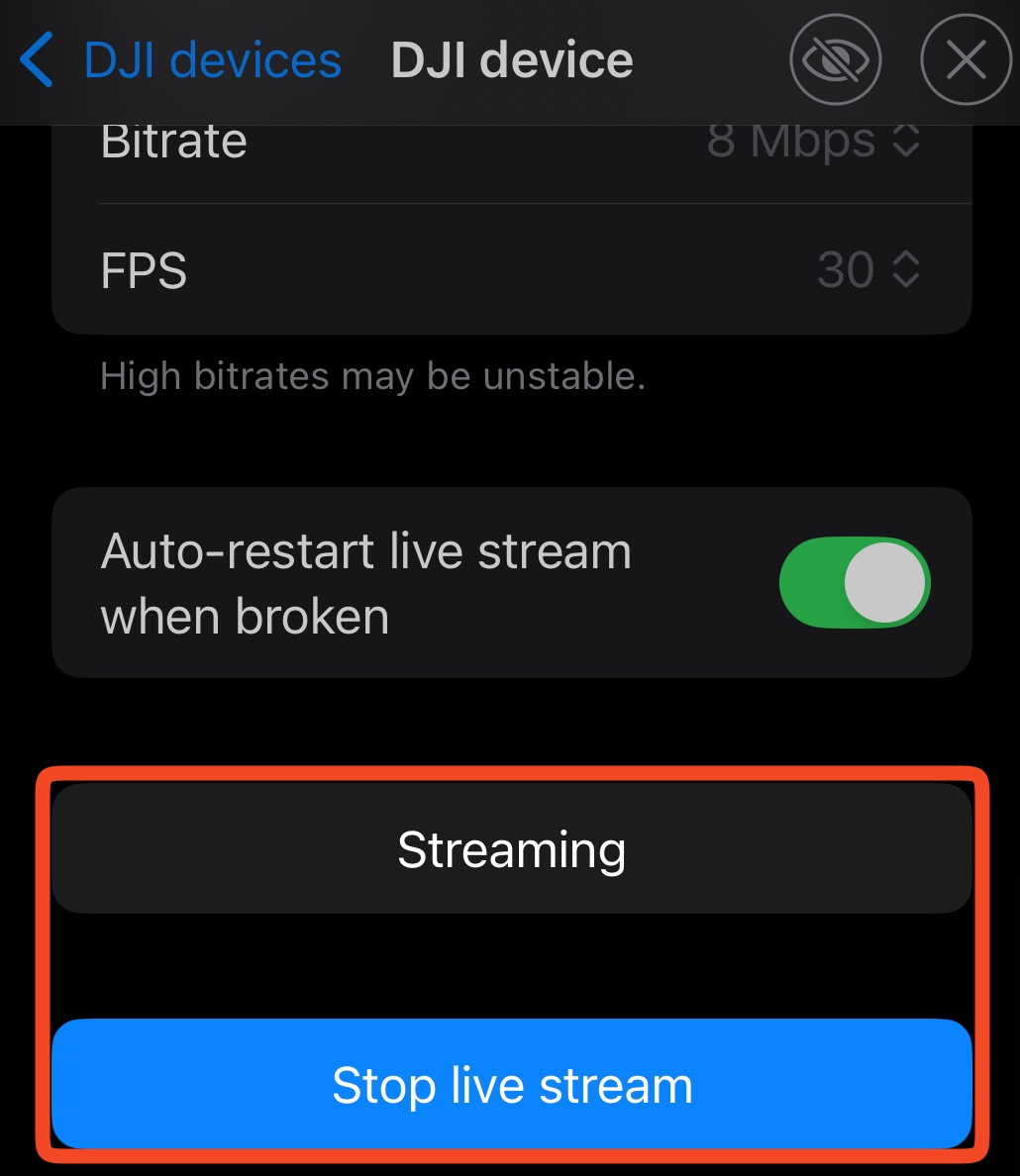
Moblin will also show Streaming and Stop live stream
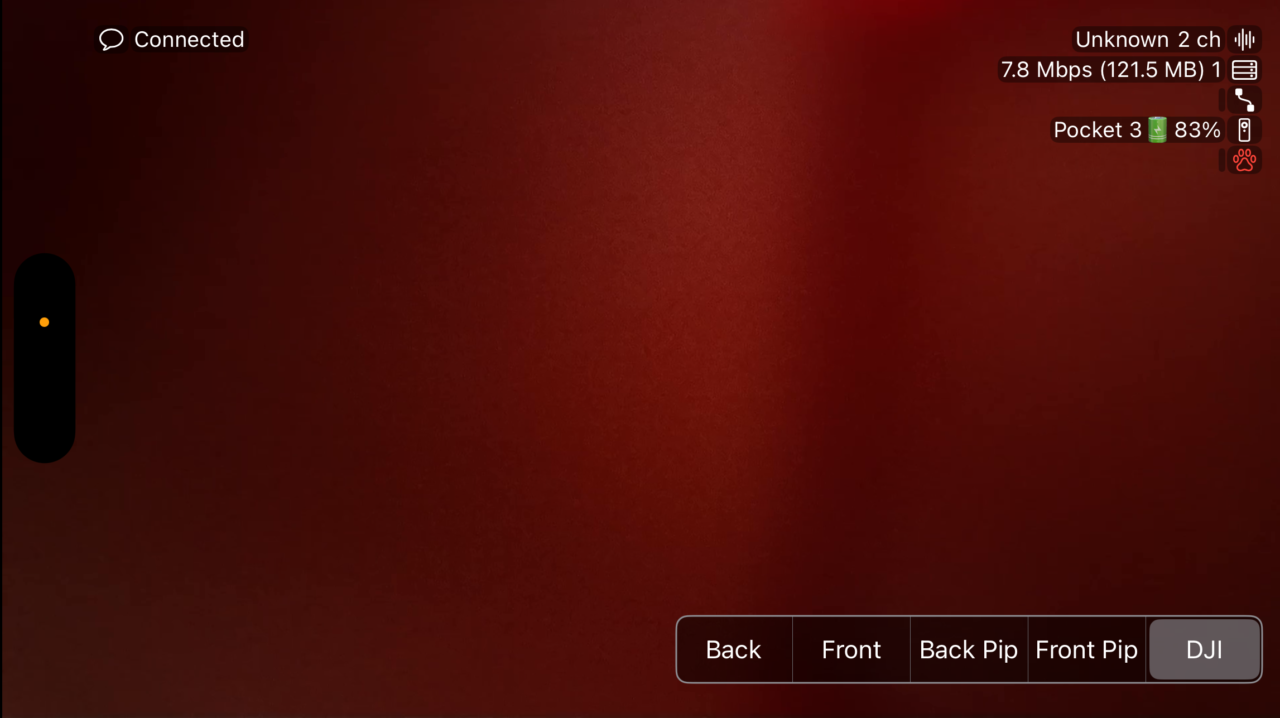
On the video feed side, select your newly created DJI scene and you should see the feed.
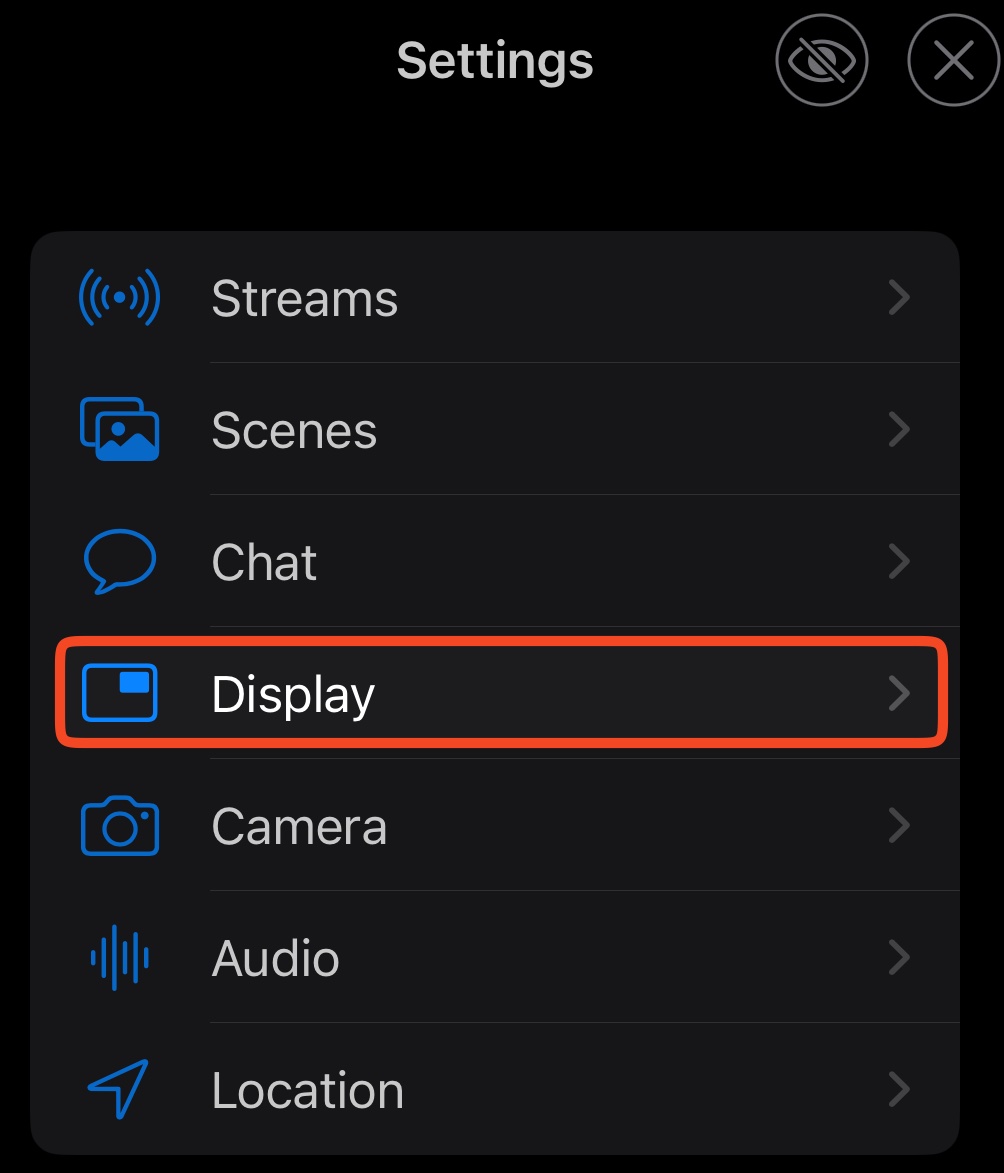
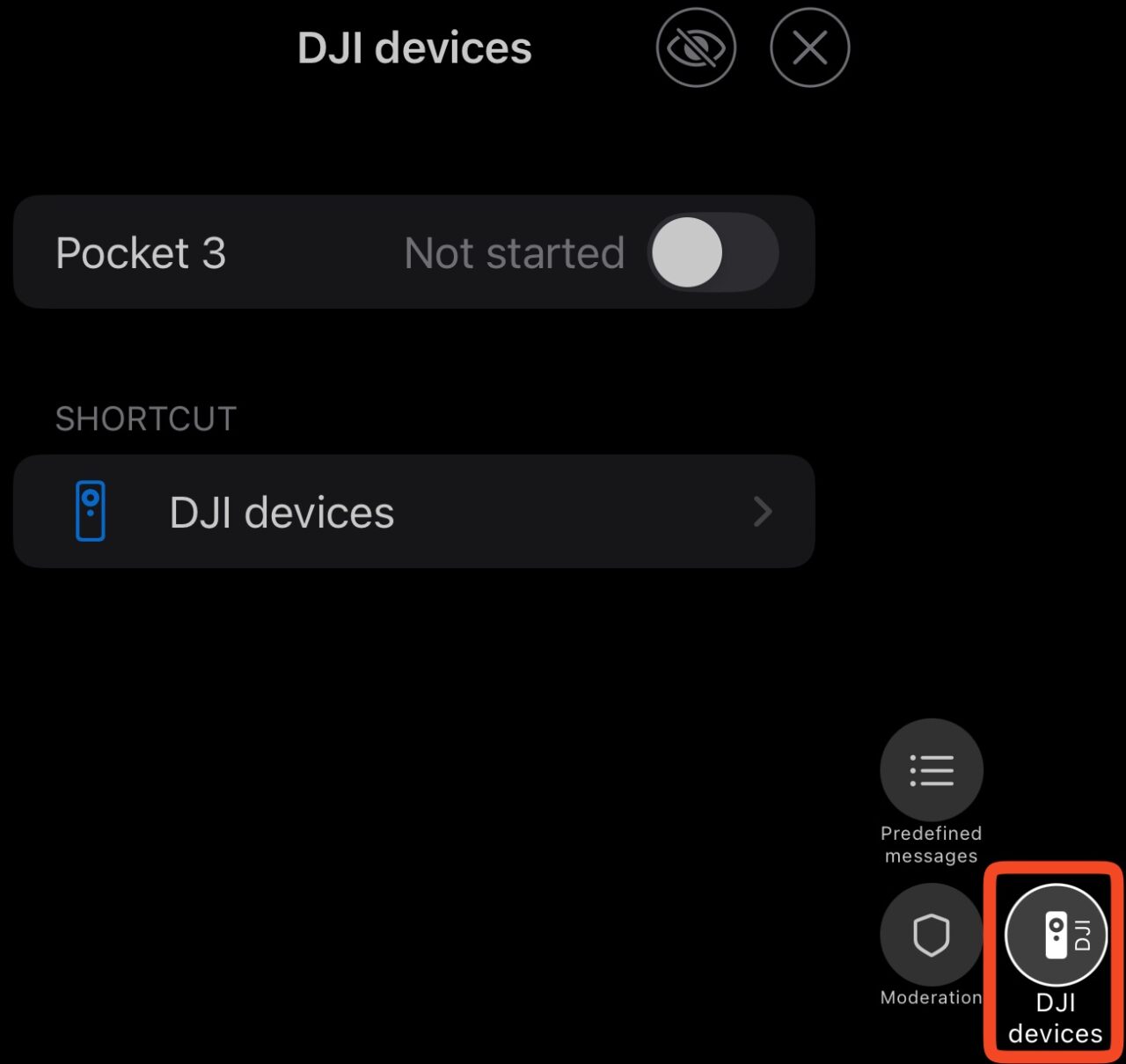
Next, we will want to make sure the Quick Button is enabled so you can get into the settings quickly to Start/Stop the camera. Go into Settings then Display
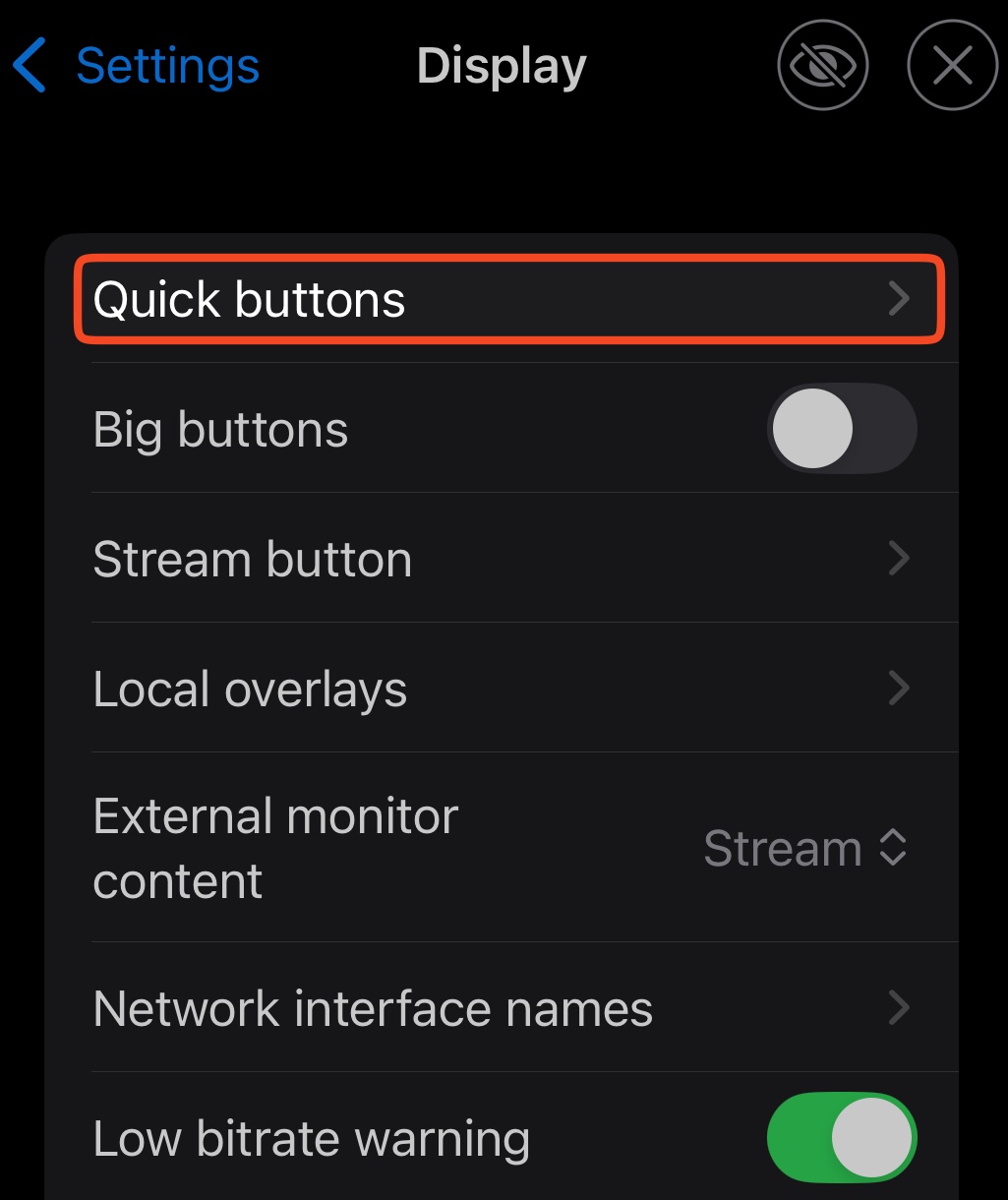
Then select Quick Buttons
And scroll down until you find DJI Devices and toggle it to on
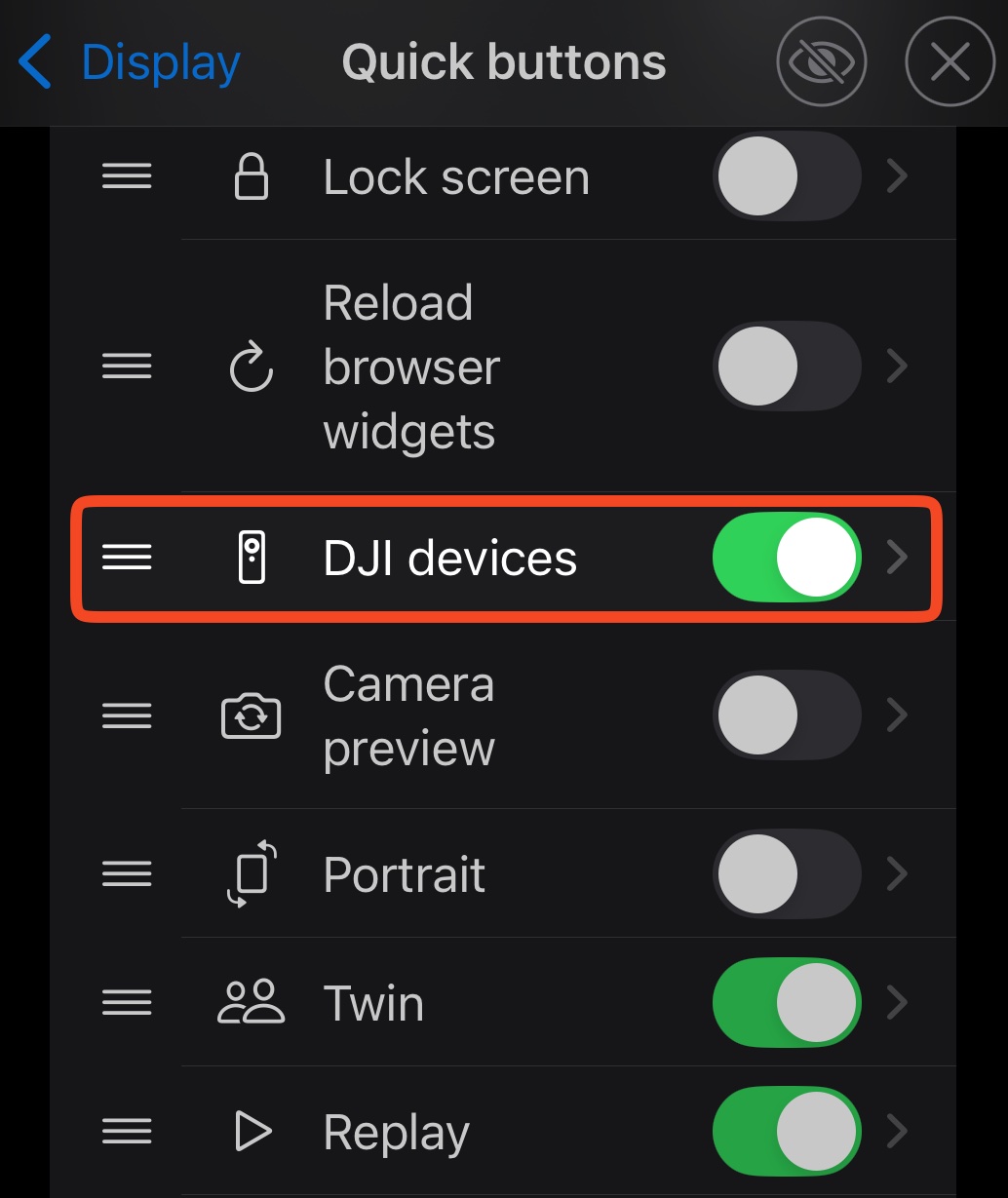
Then you can control the camera from this quick button in future without needing to go through the entire Settings menu.
If it does not start and says that there is a Wi-Fi error, you may need to toggle the Personal Hotspot off and back on again or change the RTMP URL from earlier.
Should you have issues after following this tutorial, please hit us up on the AntiScuff Discord for more help.