
How to Backup and Restore Moblin Settings
Moblin settings can be lost after an app update or reboot, including on Testflight and Apple App store builds, so it is worth taking a minute to save a backup before it happens. This guide will walk you through how to back up and restore your Moblin configuration on iOS, giving you a safety net for app updates, device changes and reinstalls. The same backup can be useful when switching to a new iPhone, or recovering after any crash or settings reset.
It is very important to make regular backups, especially before and after app updates.
Backing Up Moblin Settings
Step 1: Opening the Settings menu
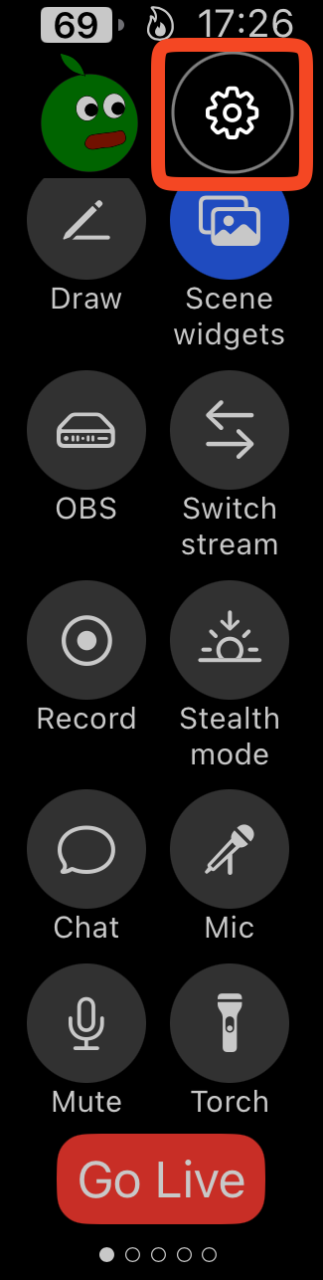
Press the Settings Icon
Step 2: Open Import and export settings
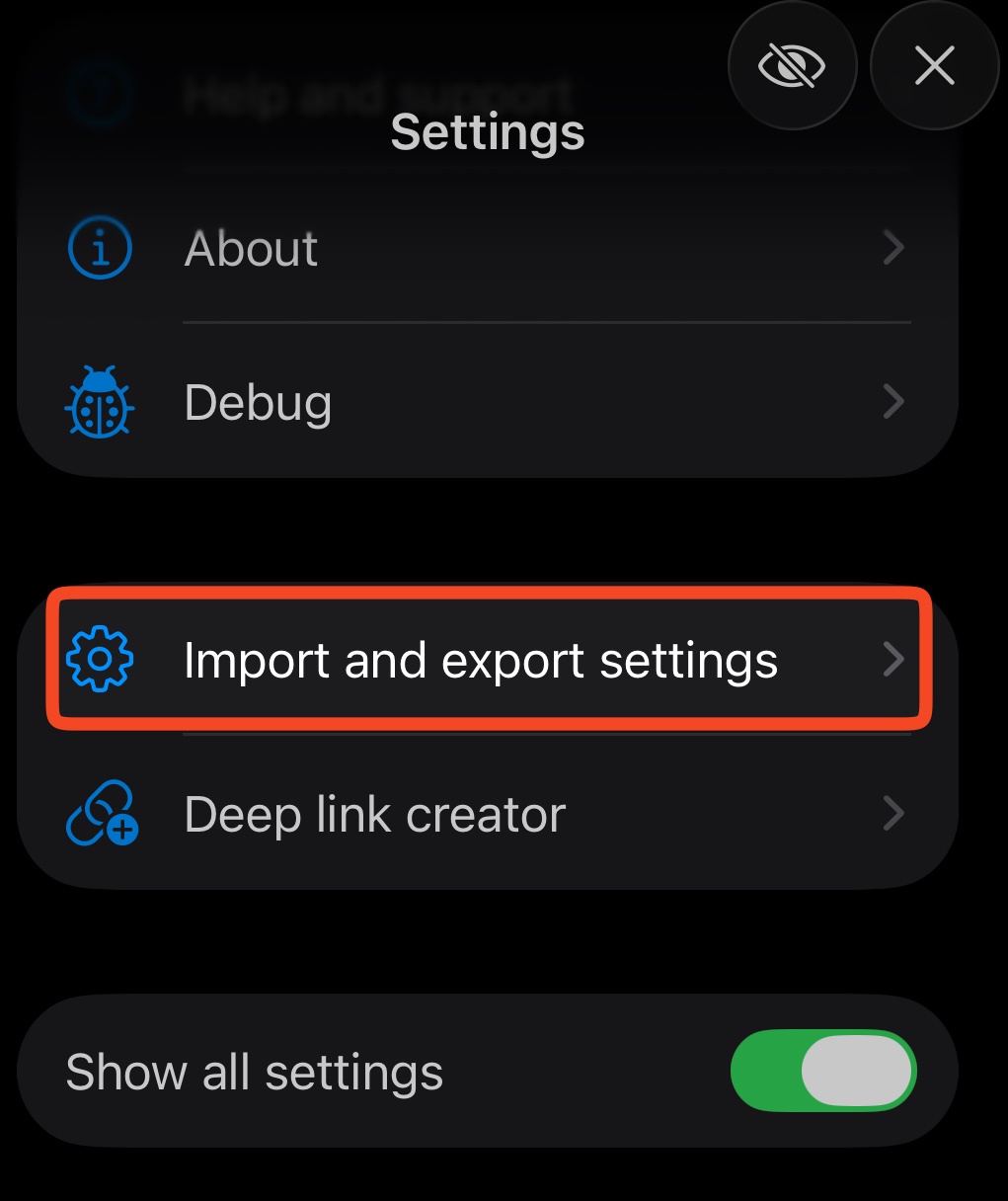
Press the Import and Export Settings button – if you do not see this, enable ‘Show all settings’
Step 3: Open Export
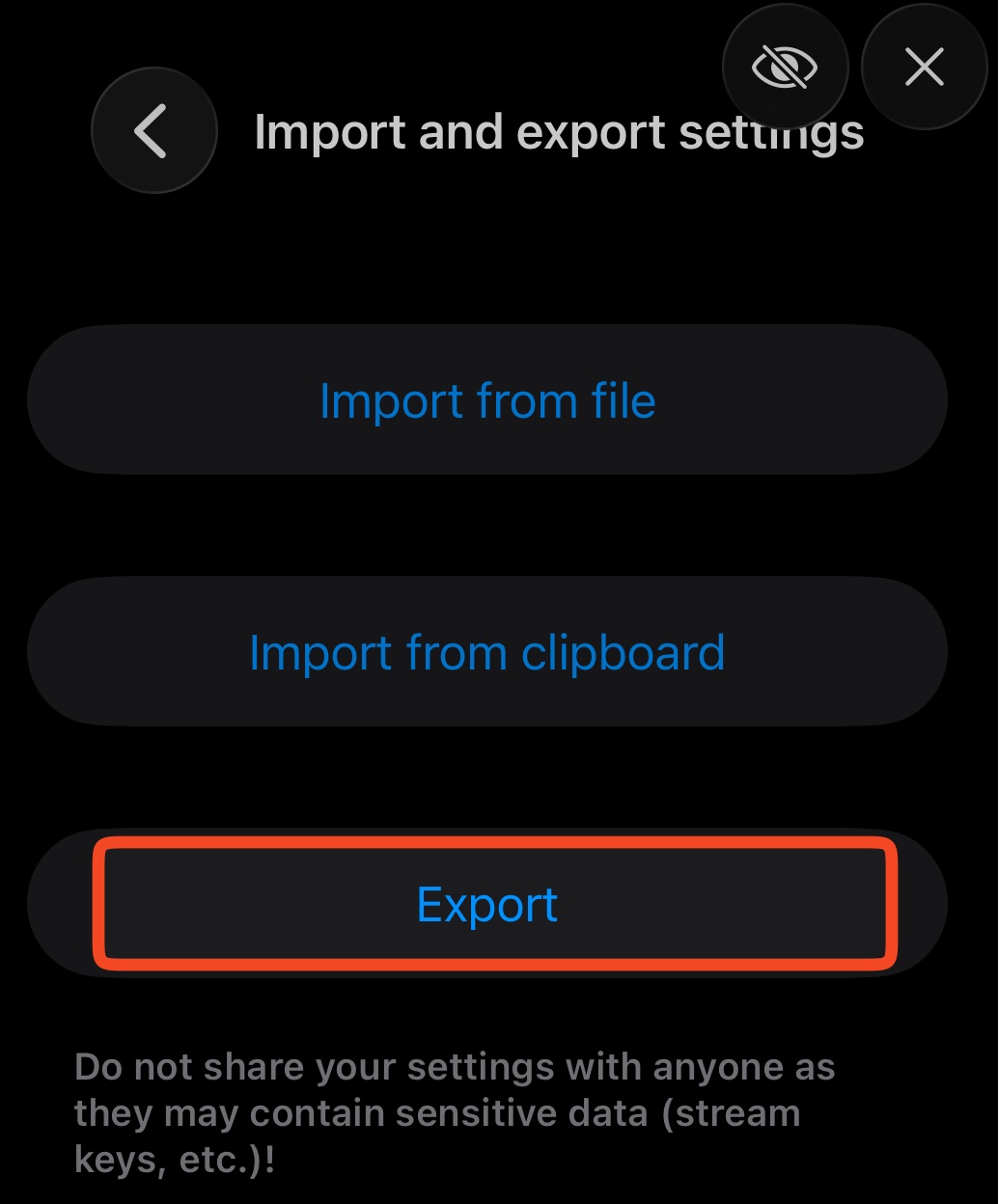
Press the Export button
Step 4: Save to files

The filename will look something like this, scroll down to
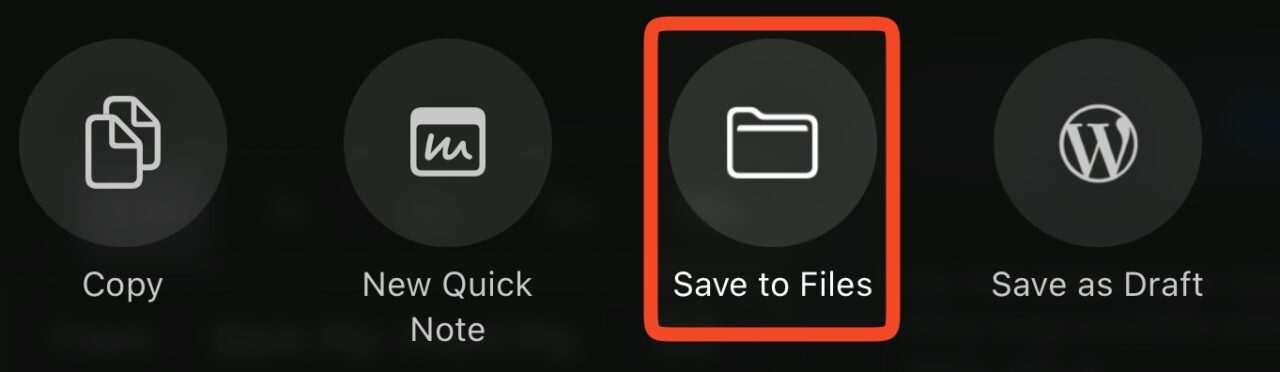
Press Save to Files
Step 5: Save the file
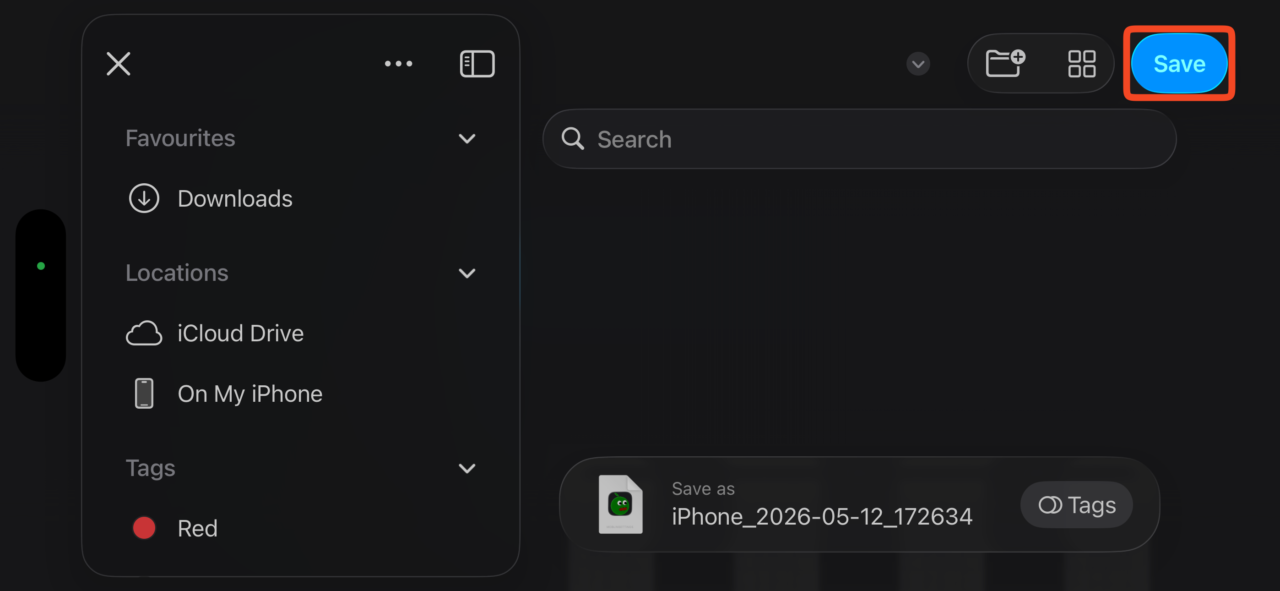
Save the file to somewhere handy, where you will remember and be able to access on other devices. If you use iCloud Drive, save to here. The backup file has been created and saved.
Restoring Moblin Settings From A Backup
Restoring the settings file for Moblin is really just a reversal of the backup process
Step 1: Opening the Settings menu
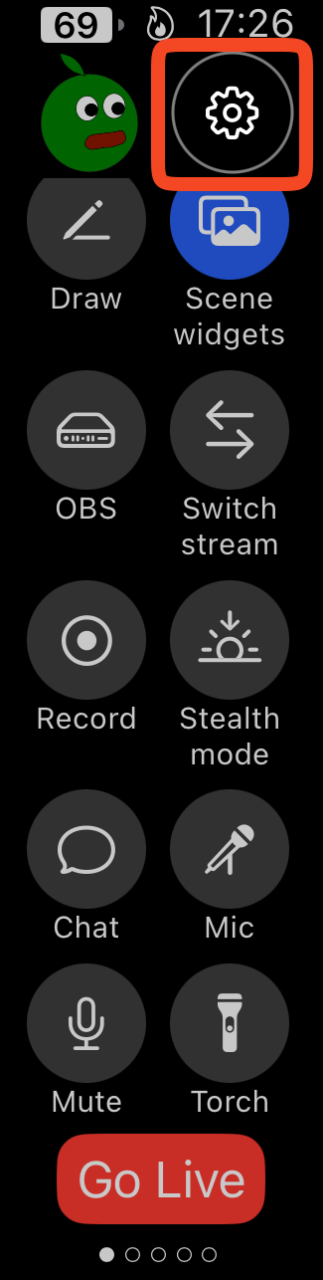
Press the Settings Icon
Step 2: Open Import and export settings
Press the Import and Export Settings button – if you do not see this, enable ‘Show all settings’
Step 3: Open Import from file
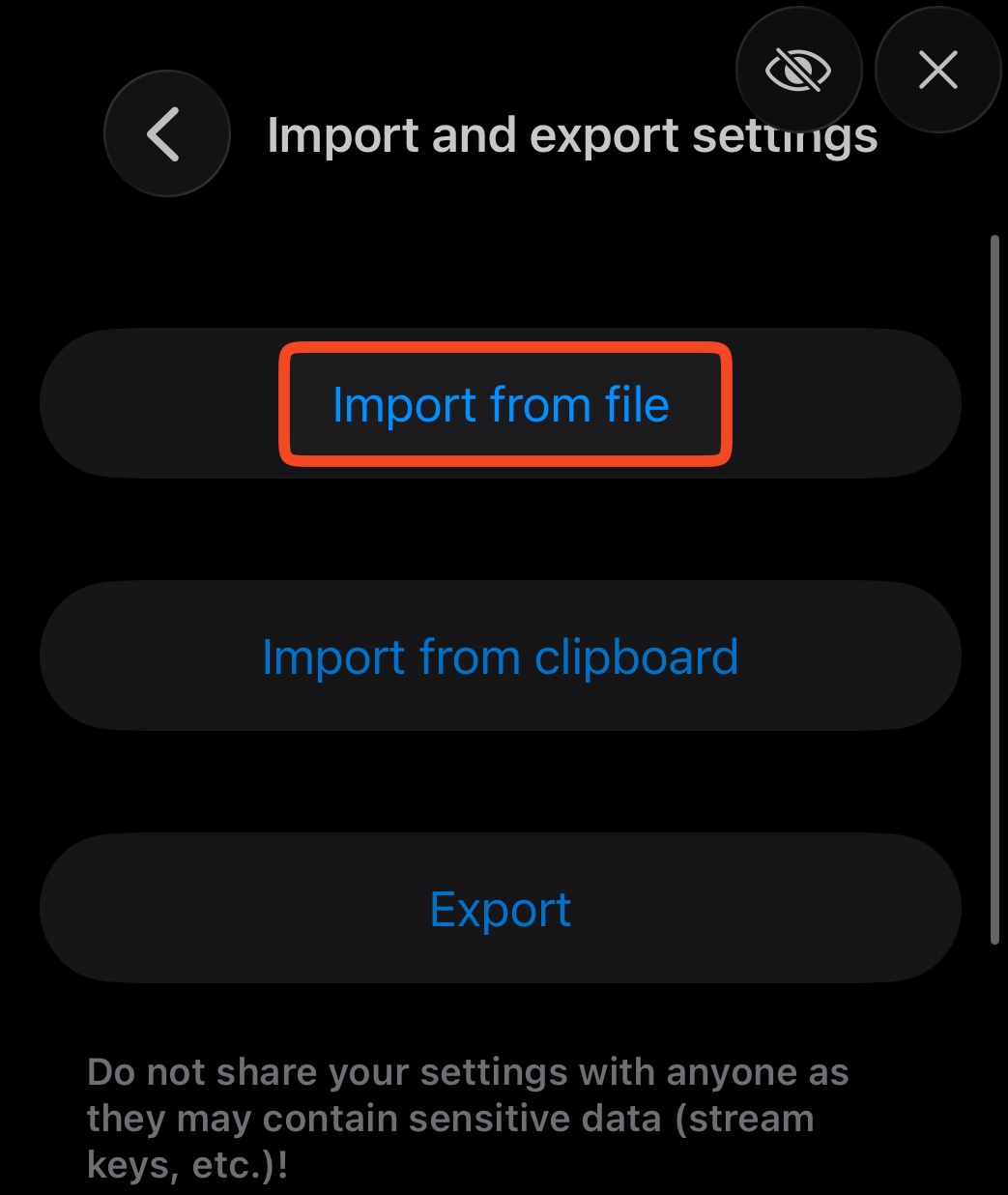
Press the Import from file button
Step 4: Importing Moblin Settings
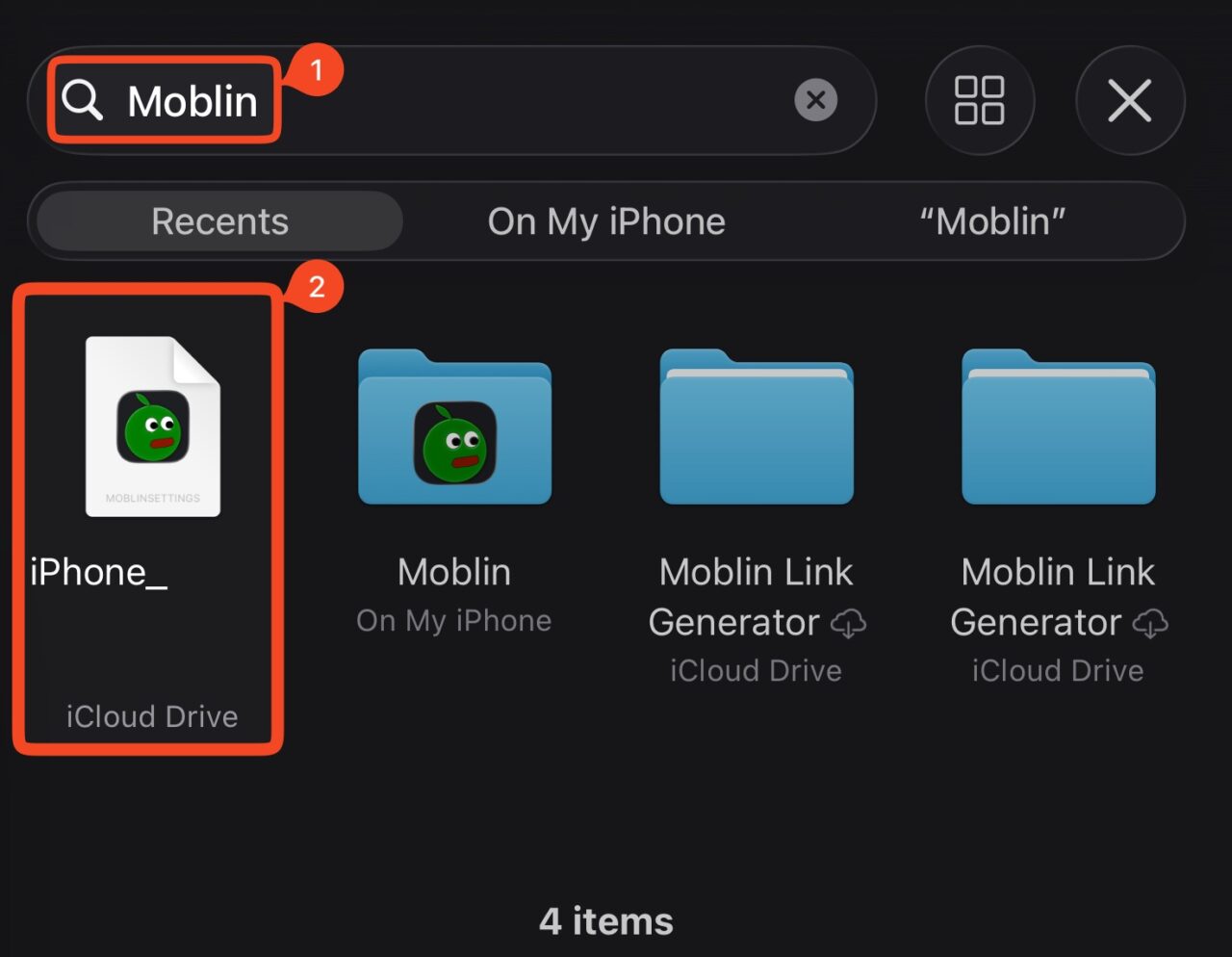
Search for Moblin (1) or go to the directory where you saved the backup, and then select the backup file (2)
Step 5: Confirming the import
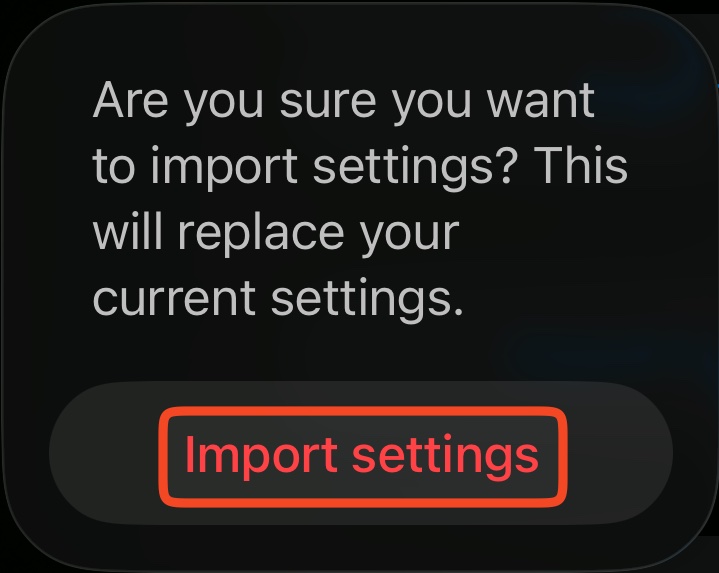
Press Import Settings
You will then see a confirmation ‘toast’ that your Settings have been imported

And that is it, you have imported your settings. Just go through to make sure everything is there and that your ‘Streams’ are active in Settings and Streams