
Connecting to OBS Websocket using OBS Blade
Controlling OBS via Websocket within OBS Blade
You will find all of the server details within the Client Portal under your active package. If this is missing, please raise a Helpdesk Ticket and we will get them added ASAP.
We recommend using OBS Blade to control OBS on your mobile device
OBS Blade is available for Android ( https://play.google.com/store/apps/details?id=com.kounex.obsBlade ) or iOS ( https://apps.apple.com/us/app/obs-blade/id1523915884 )
Please note that this guide has been written for Android, but iOS is very similar
Once you have downloaded and installed OBS Blade it should look like this

Press Start

Press 28.X and above

Press Next

Press Start
The initial screen of OBS Blade will look like this

You can either connect by using a QR Code or by inputting the details manually. We will go over the QR code method first.
First, open up OBS on the Remote Desktop

Click on Tools and then click on WebSocket Server Settings

Click on Show Connect Info

It will open the above, with a QR Code and IP, Port and Password information.
Go back to OBS Blade
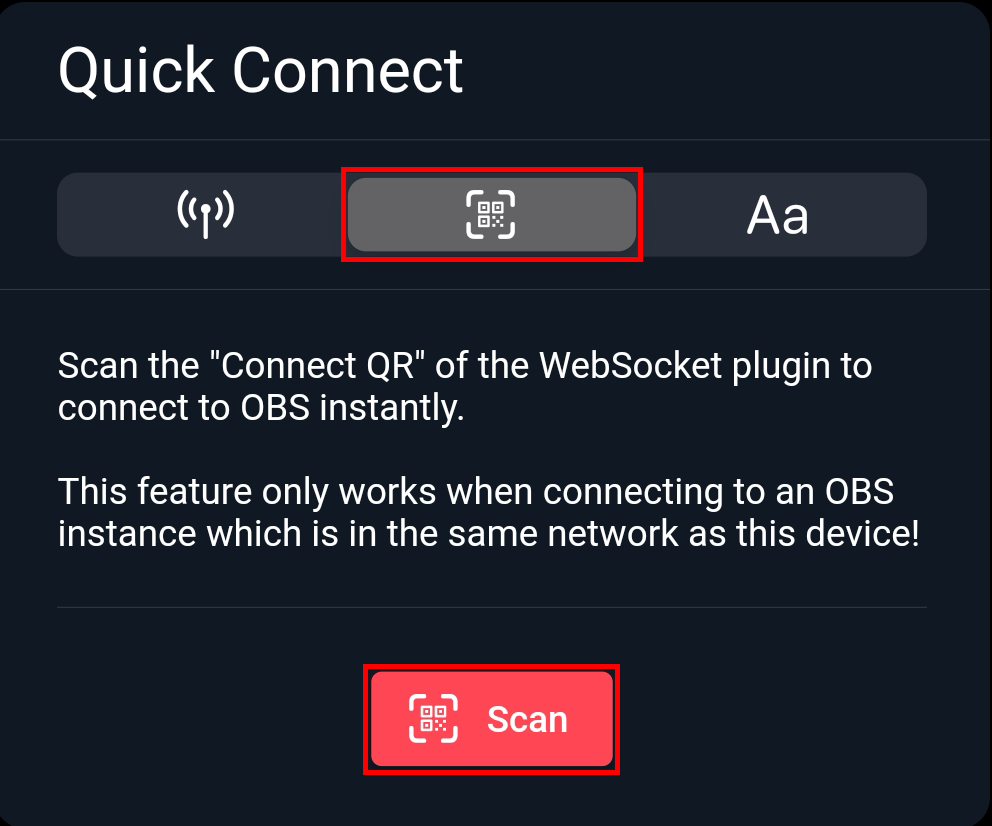
Press the QR Code icon and then press Scan

Point the camera at the QR Code on the Remote Desktop Server. It will then connect – skip to saving connection information
Connection via IP Address and Password method

Press Aa and then fill in the IP Address, Port and Password as found here then press Connect

Press Yes to save the connection details

Enter the name you would like to save the connection under, then press Save

Press Settings Cog and toggle the same as the screenshot;
Profiles
Scene Collections
Streaming Controls
Studio Mode
Scene Preview

Once loaded it should look something like this. You are now ready to use OBS Blade.
To start the stream without using the Chatbot – press Go Live within OBS Blade.
To turn off sources press the Eye icon next to the source name.