
How to setup AntiScuff on your LiveU (RTMP or SRT)
LiveU + AntiScuff
How to setup RTMP on your LiveU
When choosing your ingest server while setting up your LiveU, you can easily select AntiScuff in the list of available ingests and everything will be set up automatically for you. Couldn’t be easier!
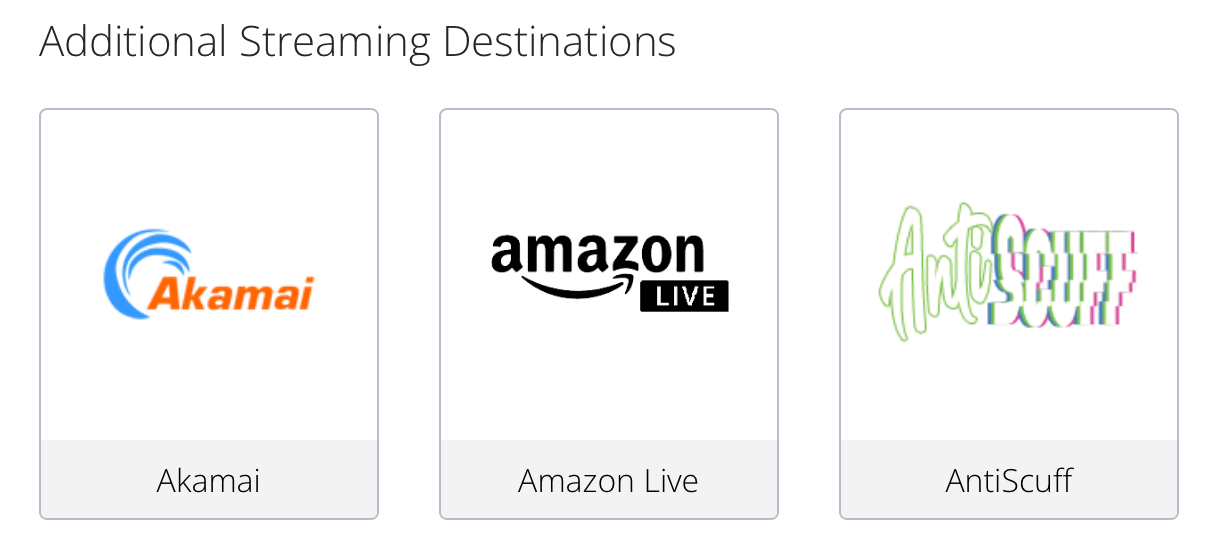
After clicking AntiScuff from the list, you’ll end up on the following screen:
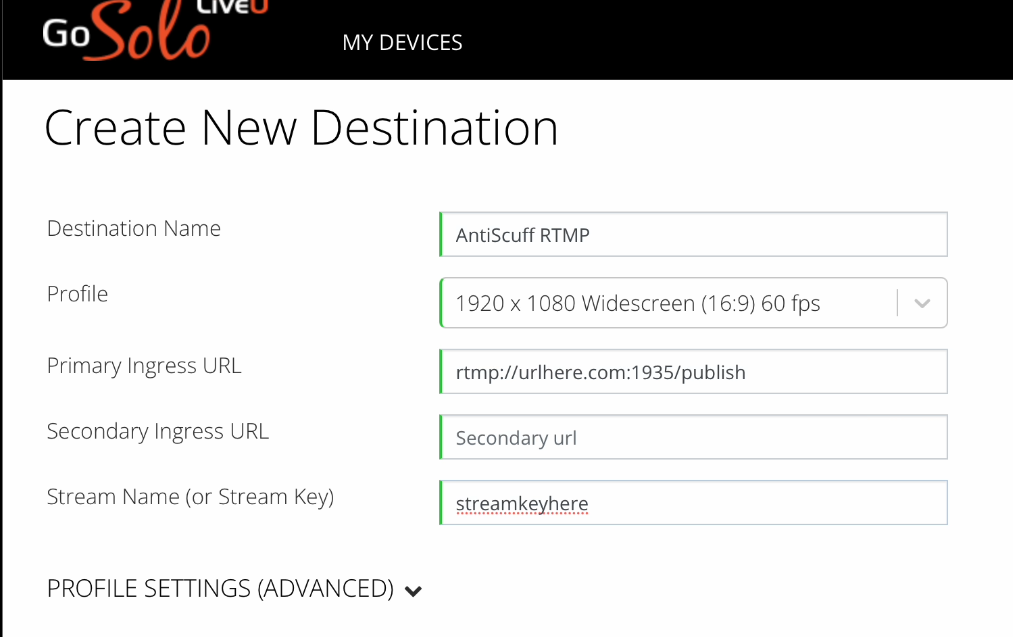
- Destination Name: Give this any name, AntiScuff RTMP is a good choice.
- Profile: 1920 x 1080 Widescreen (16:9) 60 fps.
- Primary Ingress URL: Find this in the AntiScuff Client Portal under Active Services.
- Secondary URL: Leave this empty or add a secondary Ingress URL if you know what you’re doing.
- Stream Name (or Stream Key): Enter your Twitch / YouTube / Kick / Other Stream Key here.
How to setup SRT on your LiveU
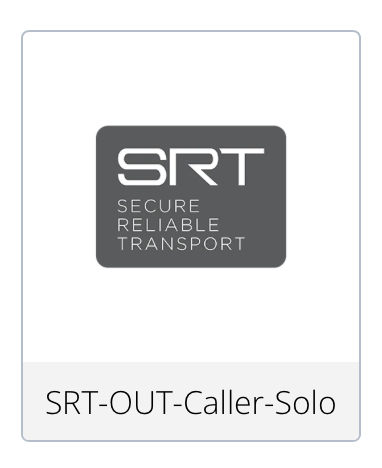
Click SRT-OUT-Caller-Solo in the list of Additional Streaming Destinations.
Change the following details to add AntiScuff SRT to your LiveU Solo.
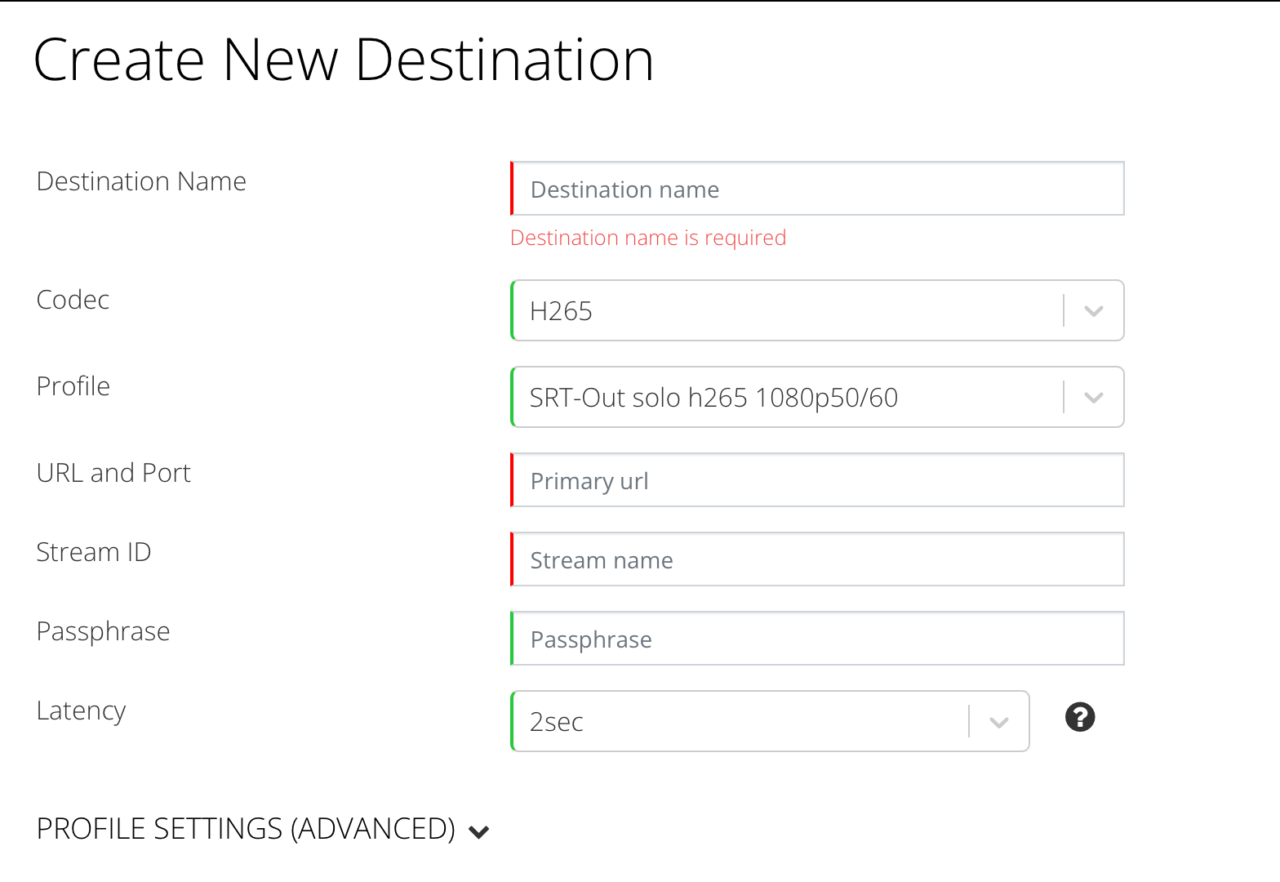
- Enter a Destination Name. AntiScuff SRT is a good choice.
- Code: H265 (if you own a Solo Pro, else choose h264, which it defaults to).
- Profile: SRT-Out solo h265 1080p50/60 or h265 25/30 fps if you like that.
- URL and Port: Find this in the AntiScuff Client Portal under Active Services.
- Passphrase: Leave empty.
- Latency: 2sec.
Done. AntiScuff is now connected as an ingest server for your LiveU Solo.