
For MacOS
We will need to install Microsoft Remote Desktop from the App Store
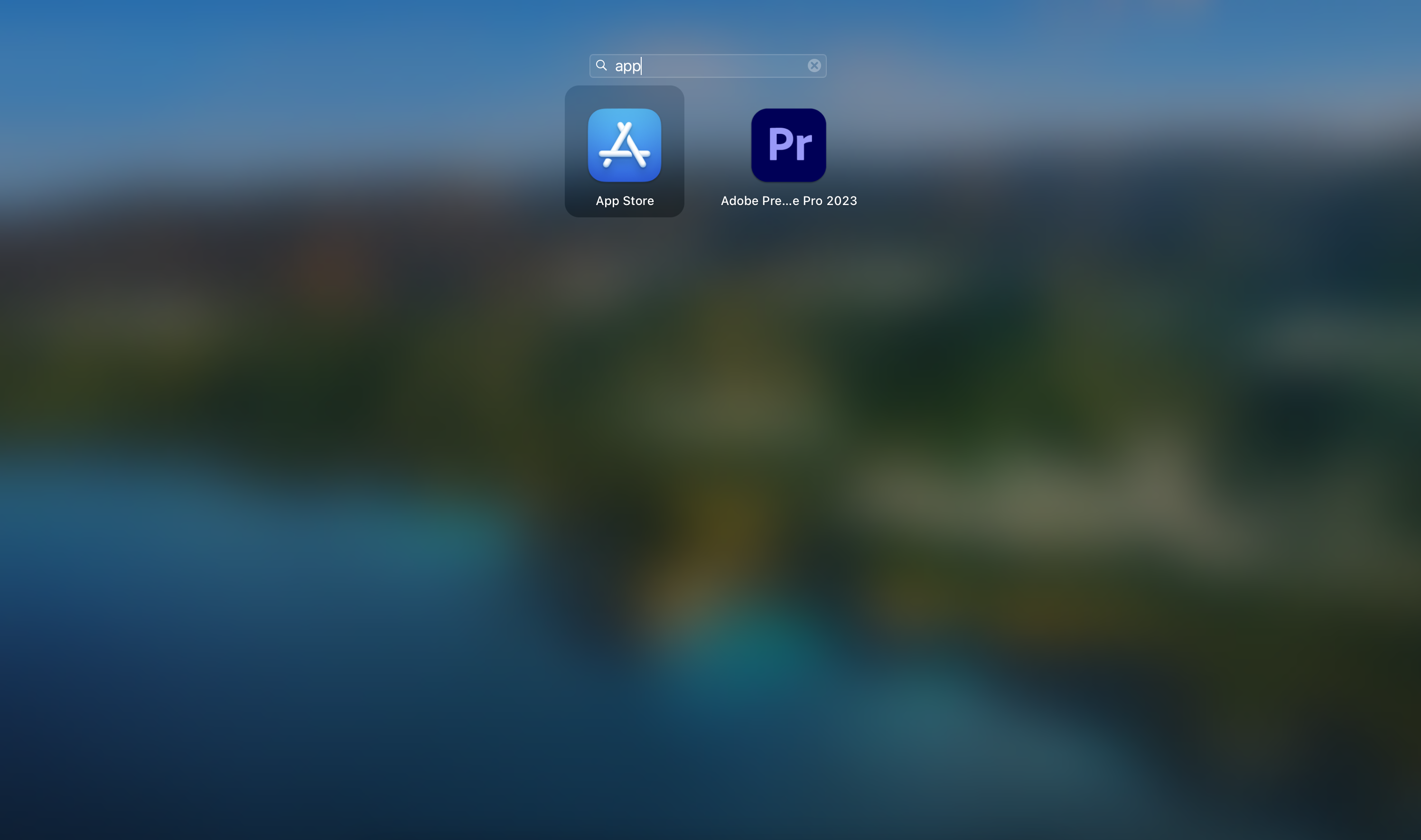
Once the App Store is open, we need to find Microsoft Remote Desktop
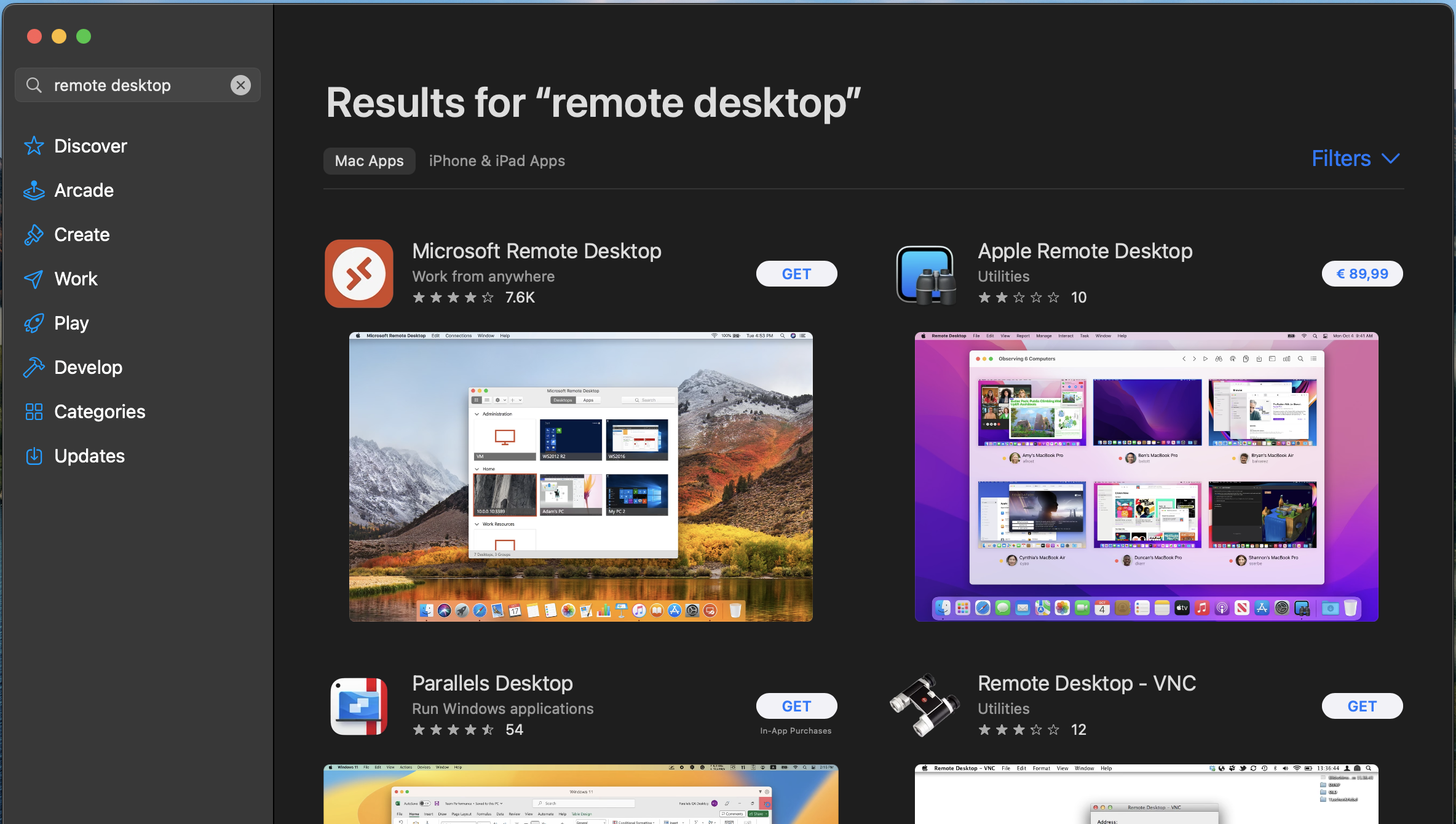
Within the MacOS App Store, search for Remote Desktop and select Microsoft Remote Desktop - Work from anywhere
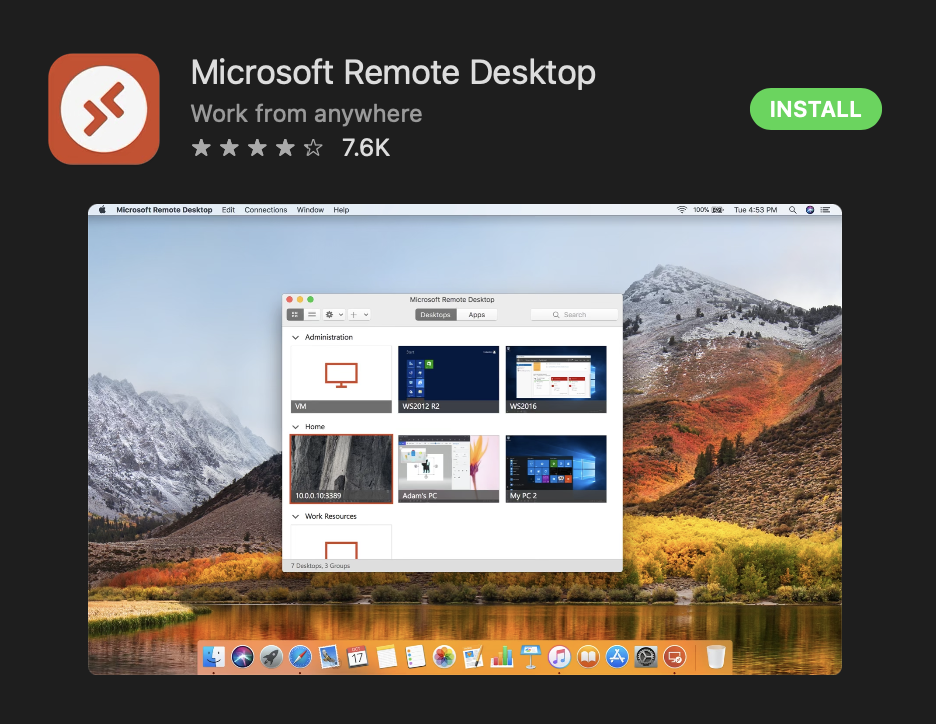
Click on Install
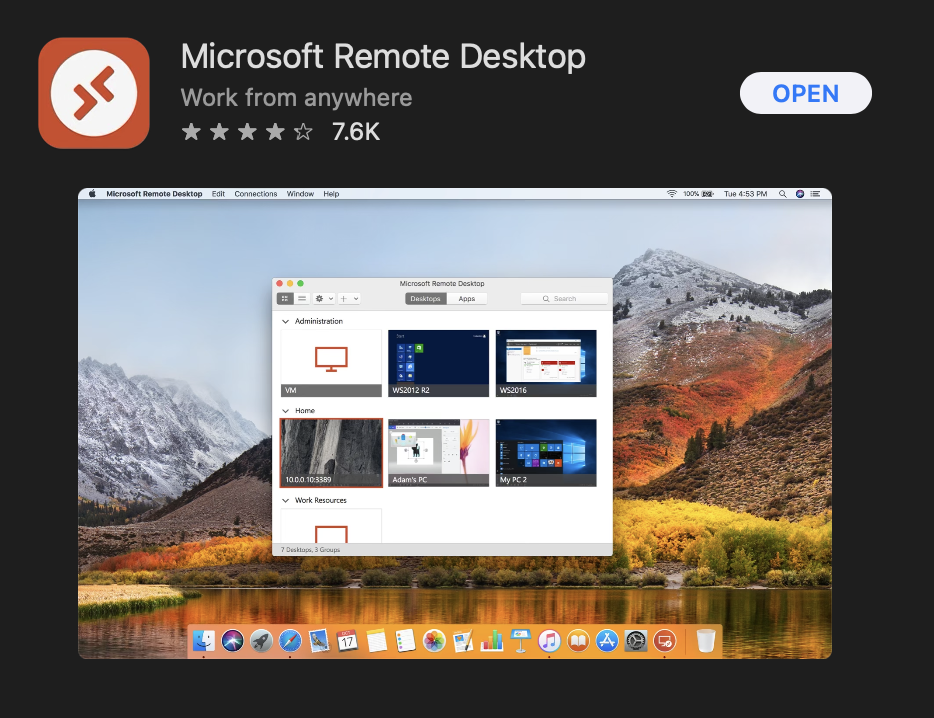
Once installed, you can open it from within the App Store or from the App Drawer
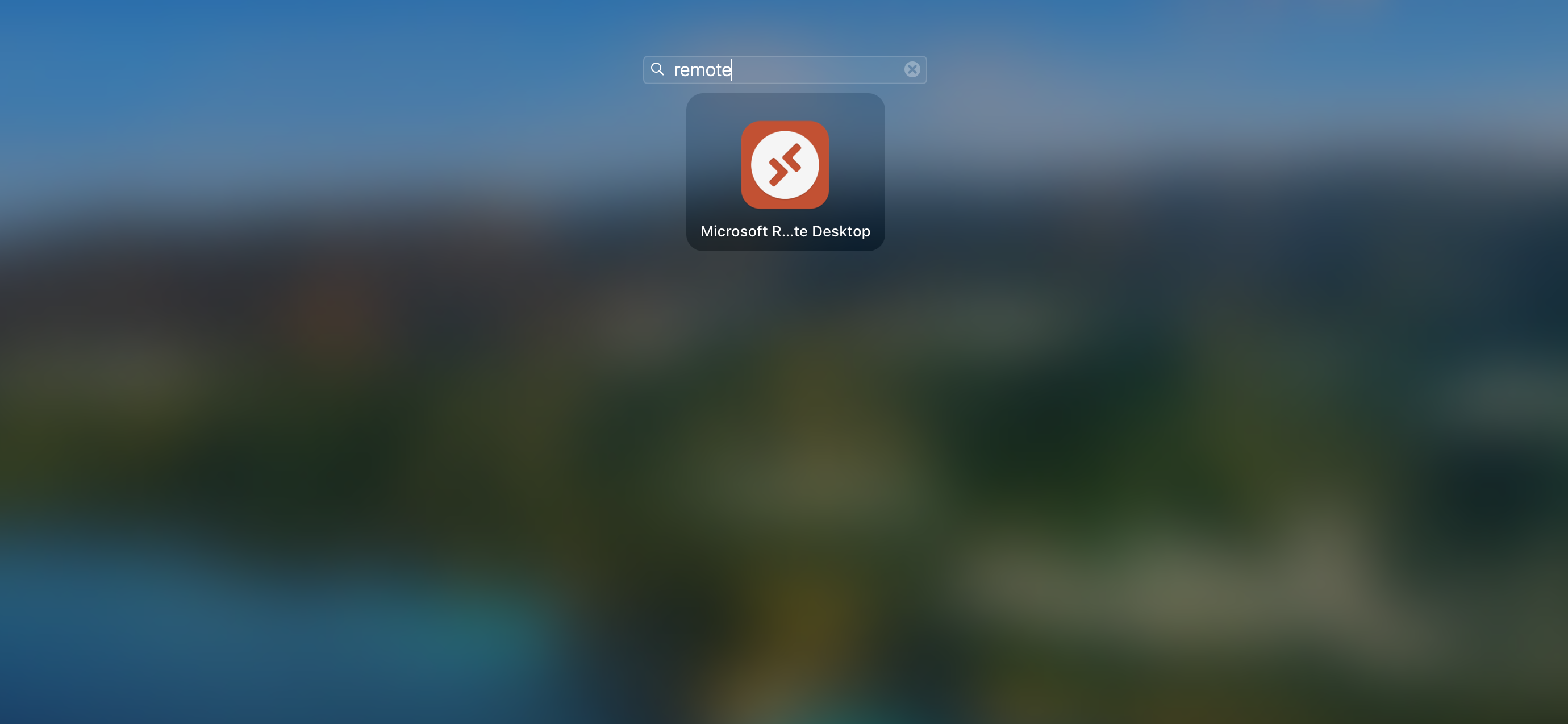
Search for Remote within the app drawer and select Microsoft Remote Desktop
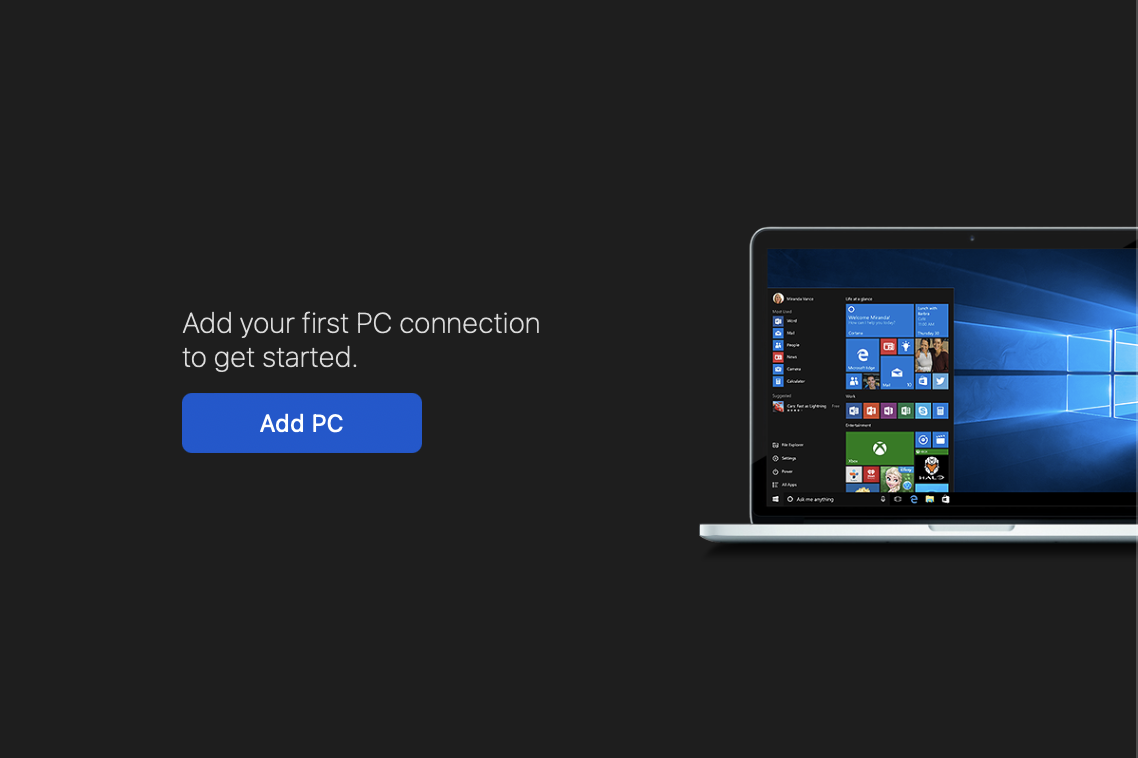
Once open, click on Add PC
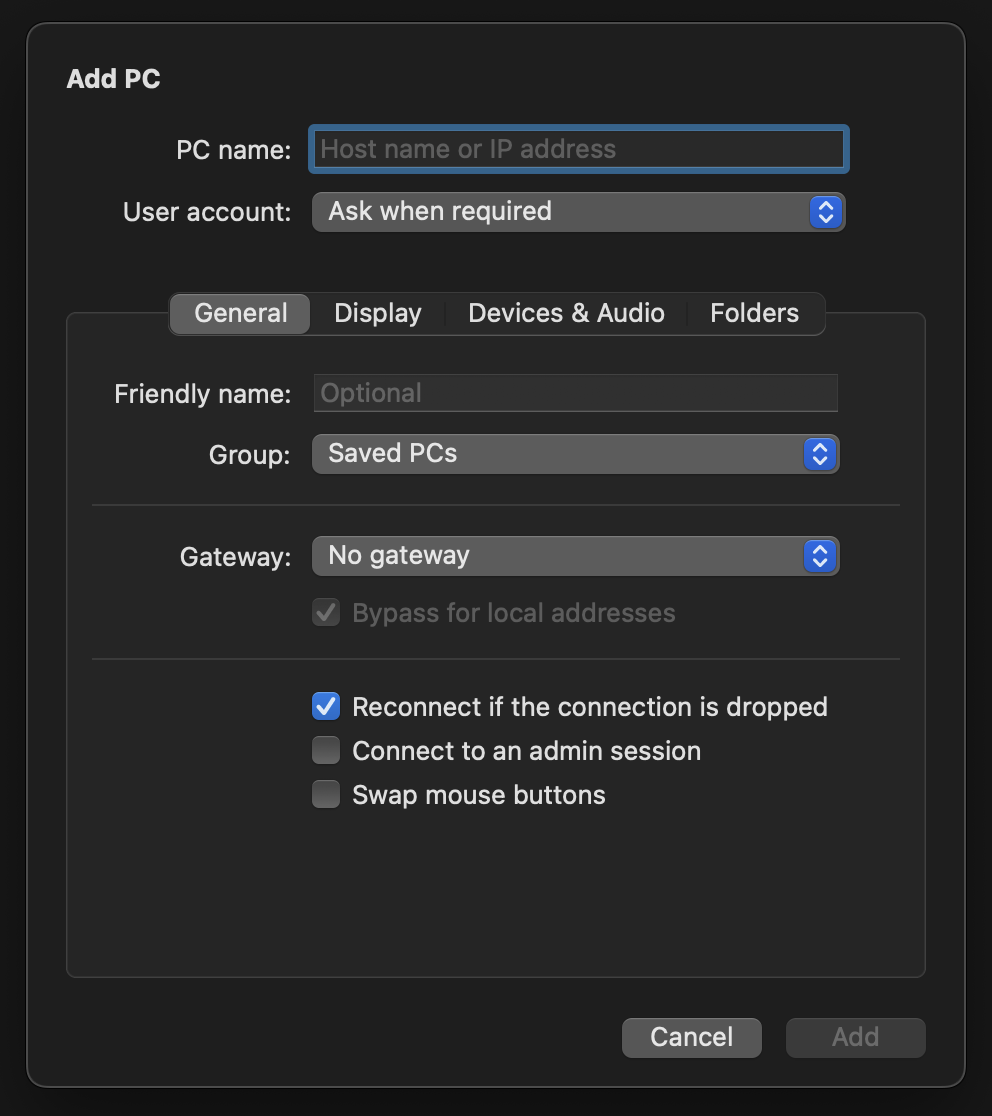
PC Name
IP Address as found within the Client Portal
User Account
Add a User Account
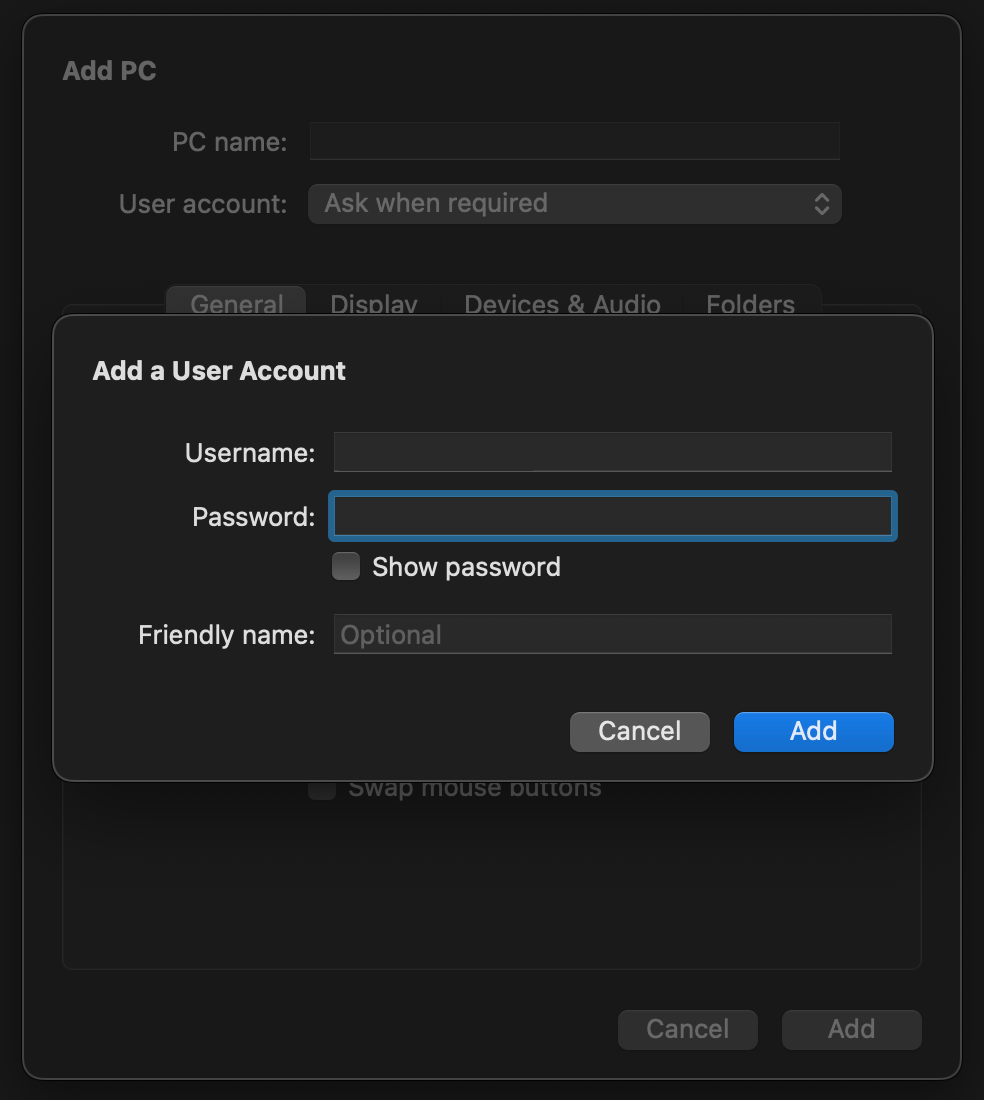
Input the Username and Password as found within the Client Portal
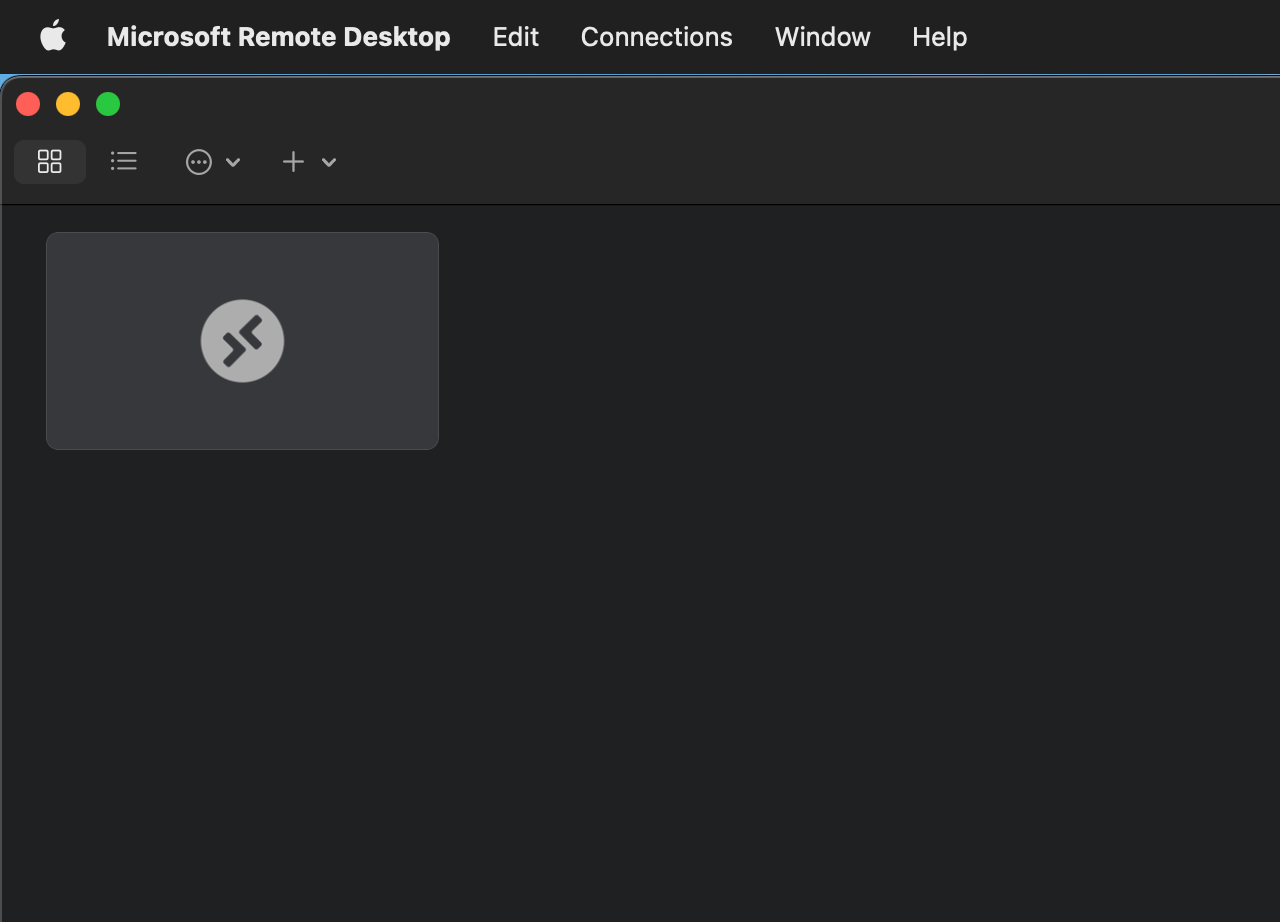
The server will now show on the main screen of the Microsoft Remote Desktop app, click on the server to launch
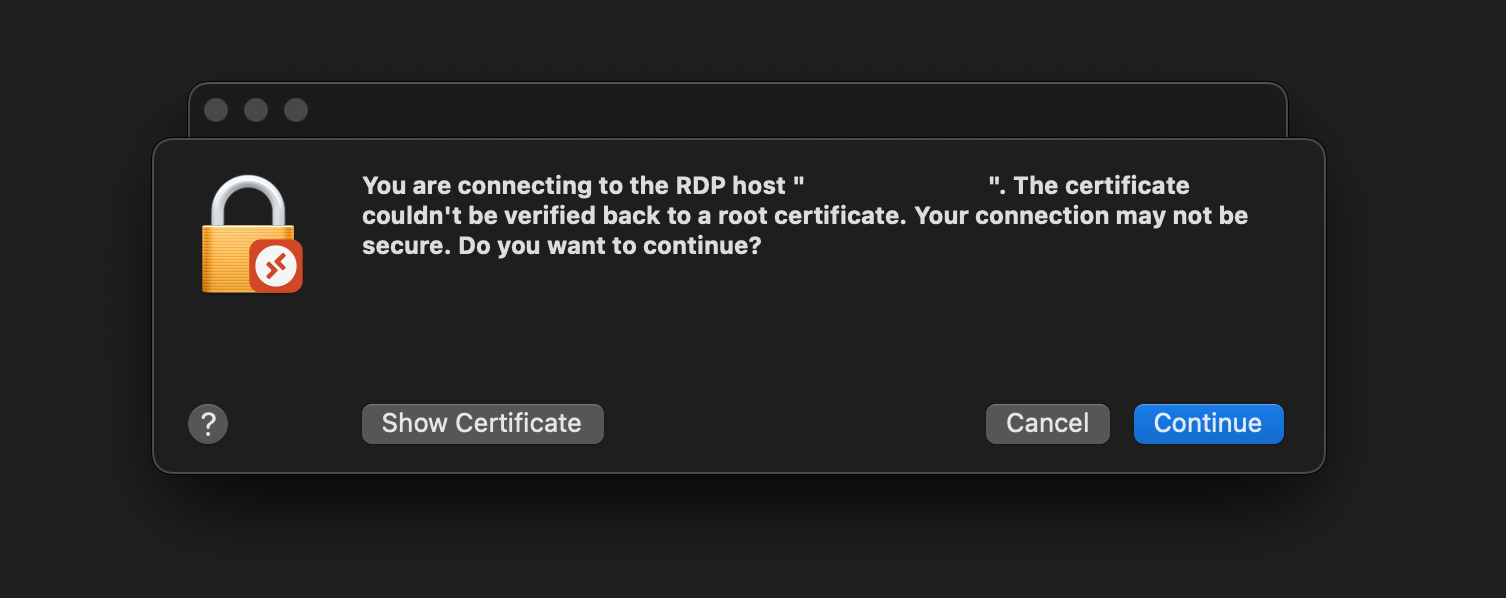
Accept the certificate error, and then you should see the desktop