When your server is delivered, there is some initial setup needed for the Disconnection Protection and Stream Control to work as intended.
We utilise NOALBS for this.
In this article, we will go over the .env file
What is the .env file for?
The env file contains credentials which allows NOALBS to read your Twitch chat for any commands, and provide information by the way of chat messages when the feed disconnects for example.
Without the env file, NOALBS will not work as intended. It will still switch scenes, but you will be unable to control OBS via your Twitch Chat. This knowledgebase article explains the process of generating the authorisation and populating the env file.
The bot account will only be used for sending messages and reading chat. You will still stream using your main account.
.env Configuration
NOALBS along with the config files are located in the Streaming Tools folder
On the Desktop, double click Streaming Tools

Open the NOALBS folder

Open the .env file
It may ask what application to open it in, if it does:
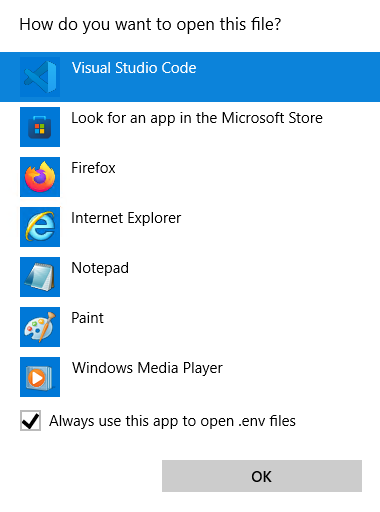
Select Visual Studio Code and click OK

This is how it will look when you first open the .env file.
Go back to the Streaming Tools folder
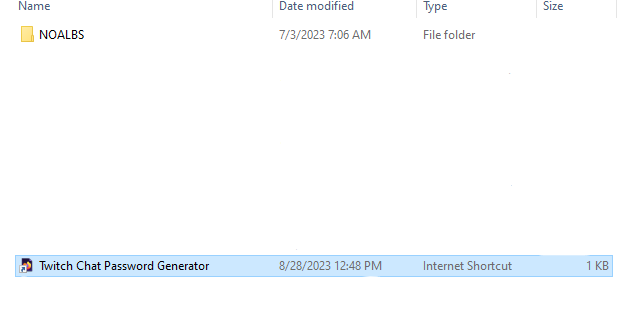
Open the Twitch Chat Password Generator internet shortcut or click here
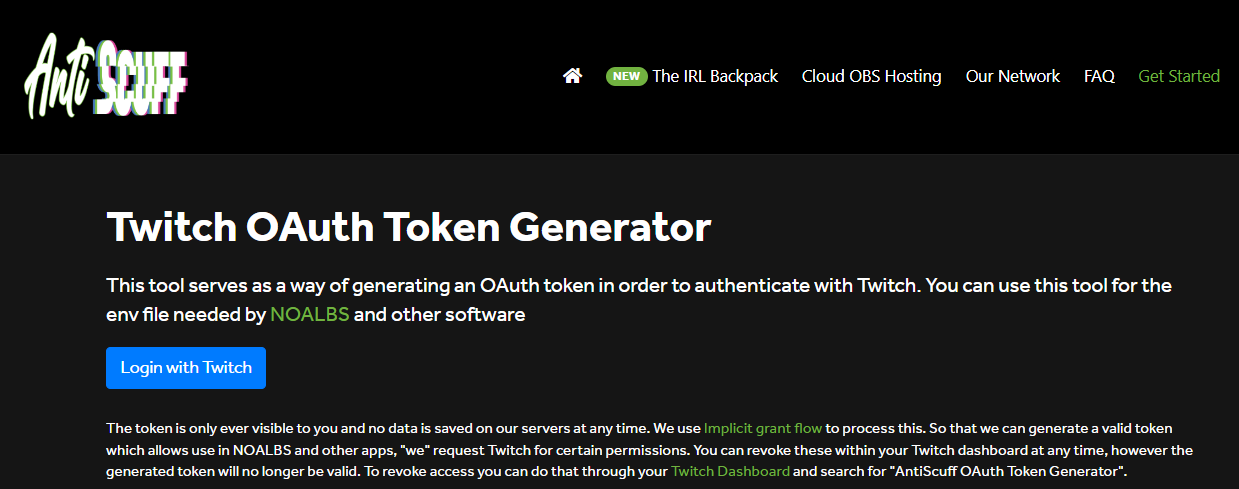
Click on Login with Twitch
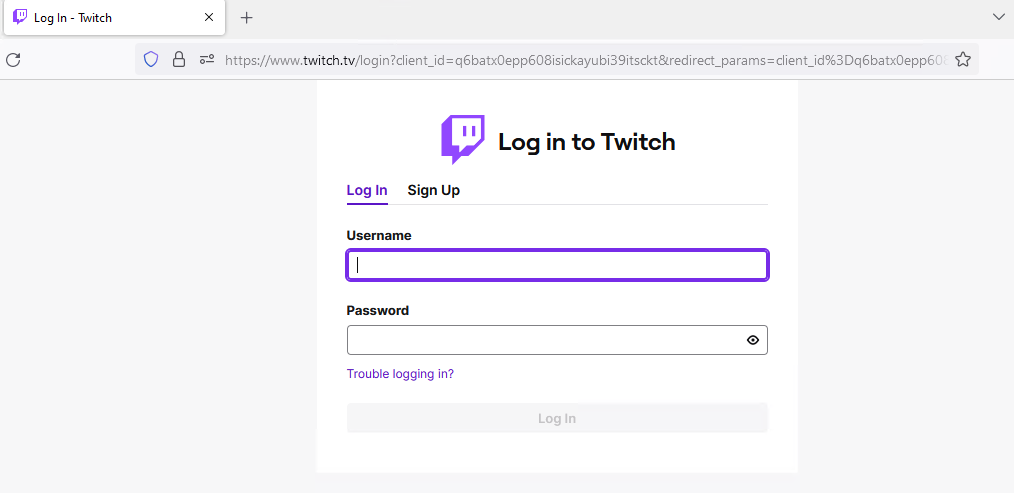
Log in with your Bot account, or your main channel account if you prefer. We'd highly recommend using a different account than your main streaming account. If you don't have a second account, you can easily register a new account to use for this. But before you do so, please go to your Twitch Settings and enable Enable additional account creation (Additional Twitch accounts can be created using this verified email address). This way you can register a new account with the same email address as your main account, so you don't need a separate email account for your bot.
Be sure to give this new account bot privileges by going to your twitch chat (while being logged in to your main account) and typing /mod NameOfYourBot in your chat. This way your bot account won't be timed out or can be accidentally banned by your other mods.
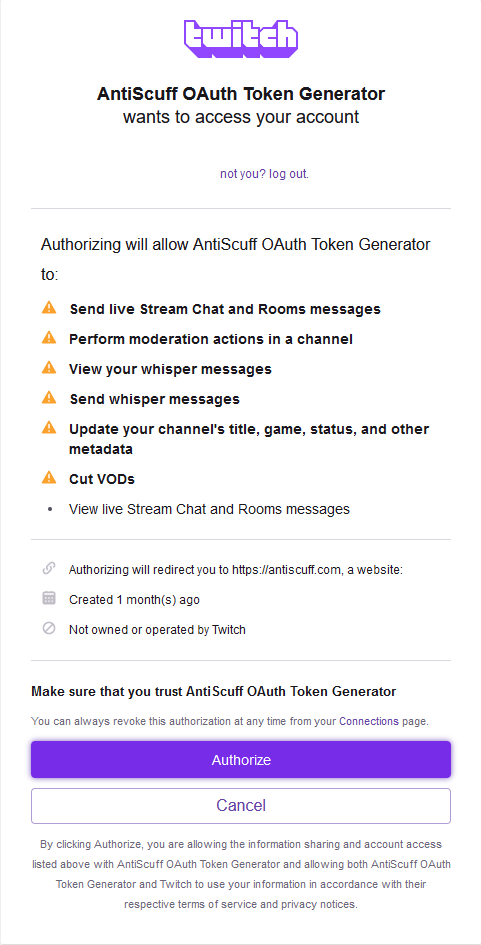
Click on Authorize
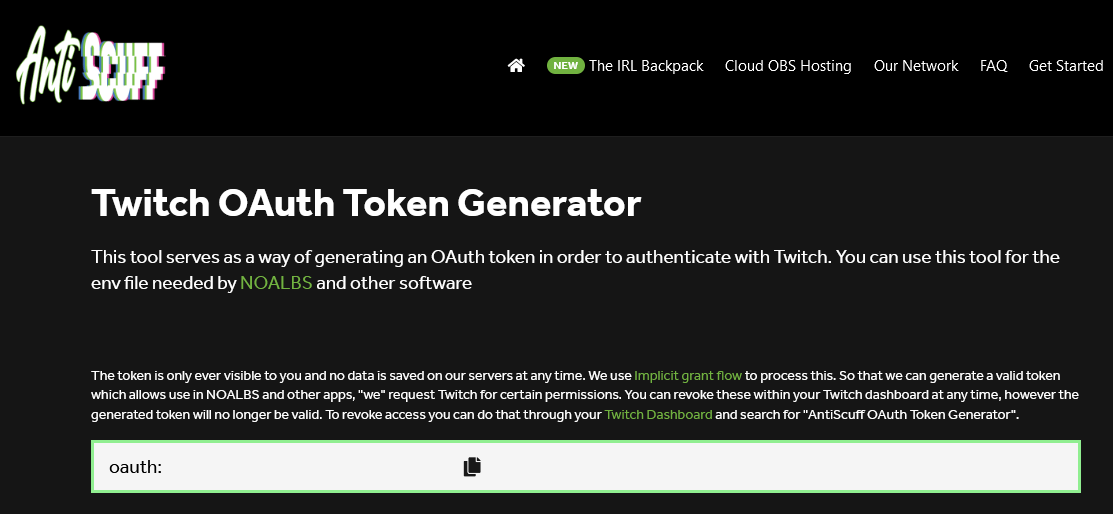
Copy the oauth which has been generated

Change the TWITCH_BOT_USERNAME= to be the same username you have generated the oauth for and the TWITCH_BOT_OAUTH= to be the oauth code generated
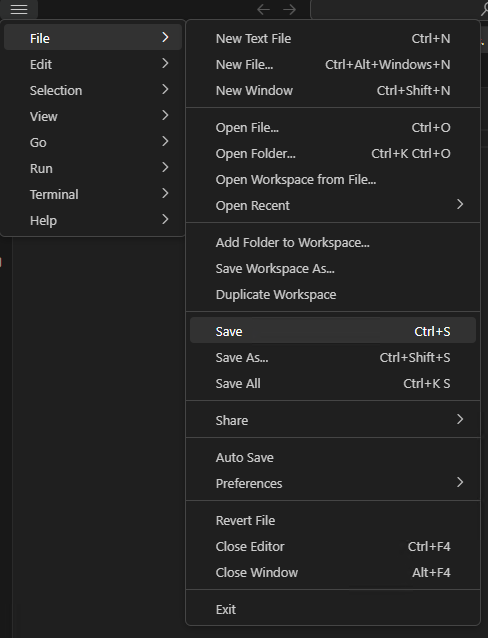
Press the "Hamburger" menu, File then Save
You are then ready to start NOALBS if the config.json has been pre-populated, or set up the config.json file